FAQs: Administrators
Predictive routing: Workload balancing and reporting FAQs
How does predictive routing impact agent workload?
Predictive routing attempts to assign interactions to the highest scored agents for the selected KPI, which can create workload imbalance. Workload balancing can be enabled as part of the predictive routing assignment to rebalance volume toward other, lower scored agents.
How does workload balancing work?
Workload balancing uses all agents in a balanced way while still considering the best possible agent to interaction matches. With workload balancing, predictive routing can rescore agents in two ways:
- By agent idle time: agents who have been idle longer are scored higher to receive more calls, while busy agents are scored lower to reduce load.
- By occupancy rate: agents are rescored up or down based on how their recent occupancy compares to threshold values defined by the customer, spreading work evenly across the team.
The trade off: because workload balancing reduces how often the single best agent is chosen, there may be a slight decrease in KPI gains. Best practice is to test with and without workload balancing, for example, two weeks each, to compare impact on KPI optimization results.
Recommended approach: start with the default idle time setting and monitor results. If that does not provide sufficient balance, switch to occupancy based scoring using customer defined thresholds, for example, agent occupancy should stay between 30 percent and 80 percent.
Will reports be available to see who is getting certain calls, for example, to detect imbalances or training needs?
Yes. The Queue Performance Detail view in Genesys Cloud shows which agents are handling interactions, with metrics such as answered calls, handle time, and transfers. Results can be filtered to the agent level and by time, media type, or skill.
For queues enabled with GPR, this view helps identify how predictive routing distributes calls across agents, detect imbalances, and identify where training or model adjustments may be needed. See Queue Performance Detail view.
In the Interactions report, for interactions routed by predictive routing, the Predictive Agent Selected column lists the agent assigned by predictive routing, while the Predictive Agents Proposed column lists the first five highest scored agents evaluated for interaction assignment.
Predictive routing: Revenue KPI and data FAQs
What additional customer data can be used to improve revenue KPI (for example, retention or churn) predictions?
Beyond standard interaction and agent data, customers can supply additional participant data to strengthen revenue focused models. Common categories include:
- Demographics and socioeconomic: income range
- Contract or policy: contract status, plan type, tenure, coverage start date, plan tier
- Billing and payment behavior: bill amount, premiums, late fees, payment method, overdraft frequency
- Usage behavior and engagement: usage volume, feature adoption, transaction volume, claims submitted
- Account value and profitability: ARPA, profitability, fees paid, premiums to claims ratio
- Account stability signals: usage or size changes, balance or transaction drops, policy utilization changes
- Channel and digital behavior: portal or app logins, website usage, email click rates
- Sentiment and survey feedback: CSAT scores, sentiment scores, complaints history
- Plan or product switching events: plan changes, upgrades, product switching, cancellations, and re enrollments
These data points are included as participant data and processed as model features. The most relevant features surface in the predictor explainability report.
Is a specific data platform, such as Snowflake, required to support revenue KPI optimization?
No. A platform such as Snowflake may be proposed as one possible approach for the data pipeline, but it is not a strict requirement. The pipeline can be adapted to fit the customer’s own data governance and security requirements, for example, using SSH key based authentication instead of Snowflake access.
Predictive routing: Billing and token consumption FAQs
Does running benefit assessment consume my AI tokens when GPR is enabled?
AI tokens are consumed only when an interaction is routed from a queue has predictive routing enabled. No AI tokens are used in the following scenarios:
- When running benefit assessment.
- When running comparison or value-monitoring mode.
- When an interaction on a queue that has GPR enabled is routed using a different routing method due to a timeout.
Predictive routing: Testing and benefit assessment FAQs
How can I test Predictive Routing?
Predictive Routing is part of the AI Experience Bundle, which includes a 60-day free trial. The AI Experience Bundle also provides monthly tokens for continued use. For more information, see AI Experience token metering and pricing.
What does a controlled pilot look like, and how should success be measured?
A typical controlled pilot runs for approximately six weeks across four stages.
Stage 1: Select and baseline (weeks 1 to 2)
- Run a benefit assessment to identify high potential queues per KPI. Benefit assessments are free and consume no AI Tokens.
- Shortlist one or two queues that meet the readiness criteria: at least 90 days of historical interaction data and more than four agents assigned.
- Establish the baseline. For AHT, take it from historical queue data. For NCA, note that queue level data is not available before enablement. The Channel Insights dashboard reports NCA at organization level by media type, so the benefit assessment output serves as the reference point.
- Agree on the success threshold and the guardrail metrics before enabling anything.
Stage 2: Train and activate (weeks 3 to 6)
- The model trains on the queue’s history. Once activated, the model takes a short time to become usable. Standard routing continues to distribute interactions in the meantime with no impact.
- Use comparison or value monitoring mode together with A/B testing, so that lift is measured against a live control rather than against recalled performance. No AI Tokens are consumed for interactions that do not route via predictive routing.
Stage 3: Read the results
- Allow for the measurement lag. AHT results appear immediately but become meaningful after approximately two weeks. NCA results appear after the seven day lookup period.
- Test with and without workload balancing, approximately two weeks each, to see what balancing costs in KPI lift and what it returns in distribution.
Stage 4: Tune and expand (week 6 onward)
- Adjust the timeout and the workload balancing mode, then extend to further queues once the pattern is established.
Measuring success
The pilot should be measured on the selected KPI together with a small set of guardrails, so that a KPI gain is not achieved at the cost of fairness or service level.
| Metric | What it confirms |
|---|---|
| Primary KPI lift | Lift in the selected KPI compared with the A/B control on the pilot queue |
| Workload distribution | Whether volume is concentrating on higher scored agents, visible in the Queue Performance Detail view and the Interactions view, both of which identify the predictive agent selected and the agents proposed |
| Service level and ASA | Confirmation that the timeout is not extending wait times beyond what the queue can absorb |
| Occupancy spread | If occupancy moves outside the acceptable band, switch to occupancy based workload balancing |
| Model plausibility | Whether the Predictive Model view shows the model relying on features that make operational sense |
Routing admin ownership: stages 2 and 4 belong to the routing admin, covering activation, timeout, workload balancing mode, and the A/B configuration.
Workforce manager ownership: stages 1 and 3 belong to the workforce manager, covering queue selection, the success threshold agreed in advance, and the judgment on whether the KPI lift justified the workload trade off.
Why am I not seeing results in comparison testing after a few days?
The availability of GPR results depends on the selected KPI:
- Average Handle Time (AHT): Results are available immediately but become more meaningful after approximately two weeks of data collection.
- Next Contact Avoidance (NCA) and Net Conversion Rate: Results are available after the seven-day look-up period.
Predictive routing: License and permission requirements FAQs
Is predictive routing available in my Genesys Cloud instance?
Predictive routing is available in GC1, GC2, and GC3 with the AI Experience Bundle. It is included by default in GC4.
What permissions are required to view benefit assessment evaluation results?
A pre-benefit assessment can be run even if predictive routing is not yet enabled. To run one, make sure you have:
- Routing > Assessment > All permissions
- Routing > Key Performance Indicator > View
Predictive routing: KPI and queue configuration FAQs
Can we optimize for other KPIs than AHT with predictive routing?
Besides the standard AHT KPI, GPR supports revenue KPIs. Revenue KPIs include sales conversion, customer retention, customer churn, and sales value. Standard service KPIs include Average Handle Time (AHT) and Next Contact Avoidance (NCA).
For more information about revenue KPIs, see Revenue KPIs for Predictive Routing.
How can I establish a baseline for Next Contact Avoidance (NCA) optimization?
Unlike average handle time (AHT), Genesys Cloud does not currently provide queue-level NCA data that you can use to establish a baseline before enabling GPR. The Channel Insights dashboard in the Analytics workspace provides NCA data at the organization level by media type.
Genesys recommends running a benefit assessment to determine whether a queue is a good candidate for NCA optimization. Currently, there is no standalone queue-level data available to compare NCA performance before and after GPR optimization.
Can predictive routing improve average speed of answer (ASA) as well as AHT?
Predictive routing optimizes AHT (Average Handle Time) as a KPI and not average speed of answer (ASA). However, your ASA may change either way as a result of AHT.
How the ASA may improve: When predictive routing lowers AHT on a queue, agents free up faster, resulting in lower wait times. So ASA can improve as a byproduct of efficiency gains.
How the ASA may fall: When predictive routing briefly holds an interaction to wait for a better matched agent before opening it up to the wider pool. That short hold can make an individual wait slightly longer than standard routing would.
To avoid longer wait times to find the right agent, you configure a timeout routing method. This helps cut the waiting period. Genesys recommends that you run benefit assessment on queues to know the value of predictive routing on those queues. Queues with fewer agents or lower volume feel the hold time more than the capacity gains.
Does predictive routing consider an agent’s AHT across queues or only within a given queue?
When ranking eligible agents for an interaction, predictive routing contextualizes the AHT of the agent within the specific queue. Predictive routing does not consider an agent’s historical AHT across other queues that the agent serves.
What type of queue is best suited for Predictive Routing?
To know which queue can be best optimized with predictive routing, we recommend running a benefit assessment on the queues. Benefit assessment identifies queues with a high potential for optimization. Before you run benefit assessment, Genesys recommends that your queues have the following:
- At least 90 days of historical interaction data
- More than four agents assigned to the queue
Does predictive routing support outbound?
Predictive routing is only available for inbound queues.
How does the timeout setting affect predictive routing for a queue?
The timeout setting specifies how long Genesys Cloud attempts to route an interaction using predictive scores before it uses the backup standard routing option.
During the timeout period, predictive routing initially prioritizes the highest-scoring agents. If these agents are unavailable, it progressively expands the pool to include lower-scoring eligible agents. More of the timeout period is allocated to higher-scoring agents. Genesys Cloud waits approximately 25% of the timeout period for the agents with the highest score; it distributes the remaining period across the other agent score ranges, gradually reducing the time in each range.
For example, with a 20-second timeout, predictive routing uses the following approximate score ranges:
Predictive score range | Time |
90–100 | 5 seconds |
80–100 | 4 seconds |
70–100 | 3 seconds |
60–100 | 3 seconds |
50–100 | 3 seconds |
30–100 | 2 seconds |
If the timeout expires before an agent is selected, Genesys Cloud routes the interaction using the standard routing method.
What is the minimum timeout setting supported for predictive routing?
The minimum predictive routing timeout is 12 seconds. You can configure the timeout between 12 seconds and 259,200 seconds.
Predictive Routing: General concepts and functionality FAQs
What is Genesys predictive routing?
Genesys predictive routing uses machine learning to match each interaction with the eligible agent most likely to achieve the queue’s chosen business outcome. Unlike standard routing, it considers the best agent customer fit, not just who is available first. Each queue optimizes one KPI at a time, such as Average Handle Time, Next Contact Avoidance, or Revenue.
What is the best way to explain GPR to agents and operational teams?
GPR does not rate agents from best to worst. It estimates which available agent is the best fit for each interaction and the selected queue. Different agents can be ranked first for different customers and interactions.
Is GPR simply routing interactions to the fastest agent?
No. GPR does not maintain a universal ranking of agents based on speed. Instead, it uses a queue-specific model to predict how each eligible agent is likely to affect the selected KPI for a particular interaction.
For example, Agent A may have the lowest overall Average Handle Time (AHT) in the queue, but GPR may rank Agent B higher for a specific interaction based on factors such as customer contact history, agent performance, and similar historical interactions.
Or, when Next Contact Avoidance is the selected KPI, GPR may favor an agent who is more likely to resolve the underlying issue, even if that agent does not have the lowest AHT.
GPR uses multiple data points to determine the predicted agent-interaction fit rather than simply ranking agents by speed.
How does predictive routing differ from standard skill-based routing?
Predictive routing does not replace skills based routing. It works on top of it. Skills continue to decide who is eligible for an interaction, and predictive routing decides which of those eligible agents is the best fit.
Standard skills based routing is deterministic. It filters to the agents who hold the required skills at the required proficiency, then selects among them using a fixed rule such as longest idle or agent priority. Every agent who clears the skill bar is treated as interchangeable.
Predictive routing keeps that eligibility filter and then ranks within it. When skill matching is enabled on the queue, the required ACD skills still gate who is eligible. Predictive routing scores those eligible agents on how likely each one is to achieve the queue’s selected KPI for that specific interaction, and tries the highest scoring agents first.
The practical differences:
- Eligibility compared with ranking: skills determine who may handle the interaction, predictive routing determines which of them is the best fit.
- Fixed rule compared with a learned model: skills based routing applies the rule you configured. Predictive routing builds a model from the queue’s historical outcomes and retrains as new data arrives.
- Uniform compared with per interaction: a skills rule treats all qualifying agents alike. Predictive routing can rank different agents first for different customers and interaction types.
- Per queue scope: each predictive routing queue has its own model optimizing one KPI. There is no global cross queue ranking of agents.
- Fallback: if no suitable agent is found within the timeout, the interaction routes using your standard method, so behavior returns to what you have today rather than failing.
Adopting predictive routing does not require you to restructure your existing skills or proficiency assignments. They continue to serve the same purpose. To turn skill matching on or off per queue, see Configure skill matching.
Routing admin view: your existing skill model stays as it is. Enabling predictive routing changes how an agent is chosen from the eligible pool, not who is in the pool.
LoB owner or workforce manager view: the change is from “anyone qualified, whoever has been free longest” to “the qualified agent most likely to deliver the outcome selected for this queue.”
Does predictive routing work with bullseye routing?
No. Predictive routing does not support bullseye routing. However, you can use predictive routing with conditional group activation (CGA).
CGA dynamically adjusts the pool of eligible agents based on configured conditions, while predictive routing optimizes agent selection within the currently active pool.
For example, you can configure CGA to activate an overflow group when the estimated wait time (EWT) of the queue exceeds five minutes. When the condition is no longer met, that is the EWT falls below five minutes, CGA removes the overflow group. Predictive routing continues to select the best-fit agent from the eligible agents throughout this process.
In this configuration, CGA determines which agent groups are active, while predictive routing determines which agent is the best fit for the interaction from within the pool.
How does predictive routing select agents?
GPR can use multiple categories of agent, customer, interaction, and performance data. The features that the model uses can vary based on the queue, media type, available data, and selected KPI.
Genesys Cloud uses internal data sources, including the agent directory and analytics data. GPR can also use optional data from sources such as web surveys, sentiment analysis, external contacts, agent profile fields, participant data, and WEM external metrics.
Examples of data that GPR can use include:
| Data category | Examples |
|---|---|
Agent profile – Identifies agents’ experience, specialization and organizational context | Skills, language, department, tenure or hire date, employee type, and certifications |
Agent performance – Identifies agents past performance in terms of stronger outcomes in comparable circumstances
| Historical queue-level AHT, after-call work, transfer patterns, and other interaction outcomes |
Customer history – Provides context about the customer’s relationship with the contact center and the likely complexity of the interaction
| Repeat-contact history, number of previous contacts, and previous queue interactions |
Interaction and operational context – Helps determine the current operating situation
| Queue, media type, time period, interaction priority, waiting time, and available-agent conditions |
Customer or business attributes (Optional data) – Adds business context when these attributes are consistently supplied as participant data
| VIP indicator, contract type, intent code, or churn propensity supplied as participant data |
Experience data (Optional data) – Can help enrich the patterns available to the model when enough usable data exists
| Survey results, sentiment, and external contact information |
Workforce metrics (Optional data) – Can enhance the agent profile with performance measures maintained outside the core interaction data
| External agent performance or specialization metrics supplied through WEM Gamification integrations |
For optional attributes, Genesys recommends broad data coverage and consistent values. The model may not use attributes that contain insufficient data or values that are highly unique.
Can customers see which features influence predictive routing decisions?
Yes. Genesys Cloud provides model explainability information for predictive routing queues. The Predictive Model view shows the most influential features and groups them into agent, customer, and other feature categories.
Feature importance indicates how useful a feature is to the model when making predictions. However, it does not indicate that the feature caused an outcome. For example, low after-call work may be associated with lower AHT, but reducing after-call work alone does not necessarily result in lower AHT.
What factors influence predictive routing decisions?
Predictive routing decisions are based on a predicted agent score calculated for each interaction in real time. AI models use the following as inputs:
- Past interaction history
- Available agent profiles
- Participant data
Does predictive routing take skill levels into account, or do skill level reviews need to happen separately?
Yes. Administrators can turn skill matching on or off for individual queues configured to use the predictive routing method. Skill matching allows an organization to factor agent skill settings into routing decisions for inbound interactions, and includes all non language ACD skills associated with queue members. See Configure skill matching.
Can customers enhance predictive routing with external data?
Yes. Customers can inject external data as participant data at runtime routing, which can then be used as features for the predictive routing machine learning models.
Is customer intent required for predictive routing?
No. Predictive routing does not require intent detection or classification, and there is no prerequisite to deploy a bot, an intent model, or IVR intent capture before enabling it. The model learns from data the platform already holds for the queue: historical interaction outcomes, agent profile and performance, the customer’s previous contact history, and the operational context of the interaction.
Intent is optional enrichment. If an intent code is already derived elsewhere, for example from a bot, a menu selection, or a classification step in the flow, it can be supplied as participant data, and the model may use it as a feature. Two conditions apply, as they do to any optional attribute:
- Coverage must be broad. An attribute present on only a small proportion of interactions gives the model little to learn from.
- Values must be consistent. Highly unique or free text values are generally not usable as features.
Whether a supplied intent attribute makes a difference can be verified afterward. The Predictive Model view shows which features are influencing predictions, so administrators can confirm whether the attribute is being used rather than assuming it is.
For a routing admin: no flow redesign is needed to begin. If an intent attribute is already set, it can be passed as participant data, and the Predictive Model view can be checked later to confirm whether the model uses it.
For a workforce manager: predictive routing does not depend on an intent or NLU project being completed first. It can start from the interaction history already available.
Can the model be guarded against favoring calls that are too short, for example, assuming that one to two minute calls are optimal?
Yes. The model scores agents based on how likely they are to achieve the selected KPI, not on call length alone. For AHT, the model learns from historical patterns and recognizes that extremely short calls, such as transfers or misroutes, do not represent true success, so it does not prioritize them. See How the AI model scores agents for Predictive Routing.
Could predictive routing pull in quality evaluation scores from managers into the decision model?
No. Quality evaluation scores are not consumed by GPR models automatically.
Genesys Tempo for iOS time-off requests
Genesys Tempo is a application that enables agents to perform the scheduling tasks.
How do I create a time-off request?
At the bottom of the screen, tap Time Off. Then, to schedule a time-off request, to the upper right, tap Add .
How do I view my time-off with Genesys Tempo for iOS?
Tap Time Off. The Summary tab appears. This tab displays your pending requests, any approved requests for this week, and your upcoming approved requests.
To see all of your requests, tap All Requests.
What are the possible statuses of my time-off requests?
The following statuses are possible:
| Request Status | Definition |
|---|---|
| Pending | The request is awaiting manual intervention from an administrator. |
| Approved | Either an administrator or the system approved the request. When an administrator approves, the update is done manually and when the system approves, the update is done automatically based on auto-approval rules. |
Canceled | The request is canceled. |
| Denied | Administrator denied the request manually. |
| Waitlisted | The system could not approve the request automatically because it is waiting on limit availability. If availability appears before the waitlist window closes, the system auto-approves the request. |
Advance Time Elapsed | The request was not auto-approved because configured advance time for the waitlist has elapsed. |
Invalid Daily Duration | The system could not approve the request automatically because the daily duration that the agent requested does not comply with the agent’s scheduled hours. If the agent is not scheduled currently, the system checks the duration against the work plan to which the agent is associated. For work plan rotation, the system also chooses the correct work plan according to time-off request dates and assigned rotation. Note: If an agent is not currently scheduled to work, and is not associated with a work plan, then the time-off request is not automatically approved. The request remains in Pending status and requires an administrator’s manual intervention. |
| Outside Shift | The system could not approve the request automatically because it is not compatible with any work plan shift. |
Removed from Waitlist | Request is no longer associated to a waitlist. For example, when an agent moves to another management unit and there is no matching time-off plan set up for auto-approval in another management unit. |
| Auto Approved | Request is auto-approved by the system. |
| Insufficient Balance | Request is not auto-approved due to insufficient balance in the selected time-off type. |
| Pending – Restricted Activity Code | The system prevents auto-approval of requests when particular activity codes are present in the published schedule. These activity codes are selected as restricted activity codes. |
How do I use Genesys Tempo for iOS to create a time-off request with non-sequential dates?
Currently, Genesys Tempo does not support the ability to create time-off requests with non-continuous dates. You can use the web app to create a time-off request with non-continuous dates.
You can use Genesys Tempo to view time-off requests with non-sequential dates.
For time-off requests, what are the possible indicators I can see?
When you log on to Tempo, the following indicators are possible:
- No border around the date indicates that the date is available to request time-off.
- Fire on the date indicates that the date is filling fast; the hours available are less than three times the requested amount. For example, if I request eight hours and the hours under the limit are less than 24, a fire appears on the date.
- A red border around the date indicates that there is a short waitlist; five or fewer people requested time-off on that day.
- A red filled box on the date indicates that there is a long waitlist; more than five people are on the waitlist after requesting time-off on that day.
- An exclamation mark (!) on the date indicates that a time-off request is pending, but it violates one or more auto-approval rules in a time-off plan.
- A question mark (?) on the date indicates that a time-off plan doesn’t exist or is set to always require an Admin approval.
- The bar at the bottom indicates the requested time-off hours in yellow and the available balance in green.

What do the different pending messages mean for time-off requests?
| Pending Message | Definition |
|---|---|
| Your request is waitlisted. You are third in line on the waitlist. | Request duration and all other checks have passed. Currently, limits are not available on the dates selected. The system approves the request automatically when limits become available. |
| Your request was not auto-approved because the configured advance time for waitlist has elapsed. | The request is expired and the system cannot approve it automatically. |
| Your request was not auto-approved because the daily duration specified is not compatible with the scheduled or planned shift duration. | Requested duration did not pass the check against a published schedule or, if none exists, the work plan to which the agent is associated. The request requires manual intervention from an Admin for approval or denial. |
| Your request was not auto-approved because the partial day paid request is not compatible with any planned shift. | Requested partial day did not pass the check against a published schedule or, if none exists, the work plan to which the agent is associated. The request requires manual intervention from an Admin for approval or denial. |
Authenticated web chat FAQs
Can I create a web chat without a deployment?
No. You can create web chats only by creating a widget. For more information about setting up a widget deployment, see Create a widget for web chat.
Do I have to use authenticated chat?
No. You can use a web chat without requiring authentication. For more information about setting up a widget deployment, see Create a widget for web chat.
Can I allow both authenticated chat and anonymous chat?
Yes. Create one deployment for authenticated chat and another deployment for anonymous chat. For more information about setting up a deployment, see Create a widget for web chat.
How do I know that authenticated chat requests to Genesys Cloud are only coming from my site?
Your site can request a signature for authenticated chat only if it has a valid OAuth token for your organization. Only you know the credentials for making requests to the Genesys Cloud API on behalf of your organization. As long as you secure your credentials, no one else can make requests to the Genesys Cloud API on your behalf.
What information is sent to Genesys Cloud with a signature request?
You can send as much or as little information as you want. The only required item is the OAuth token.
How do I assign division for existing External Contacts?
You cannot assign division directly to an existing contact. By default, all existing contacts appear as unassigned to a division. This display allows existing contacts to be visible to users who have the appropriate permissions.
To use divisions for external contacts, you must delete existing contacts and recreate them with the preferred division assignment. For more information about how to delete and recreate existing contacts, see Divisions for External Contacts quick start guide.
What are the Genesys Cloud limitations?
Limits define thresholds for specific areas of the Genesys Cloud API. These guardrails help to safeguard Genesys services from abusive and unexpected traffic patterns, encourage efficient use of billable resources, and protect customers from unexpected usage.
Genesys defines limitations in the Developer Center. For more information about limitations and limits that are specific to a feature, see Limits in the Developer Center. For information about Genesys Cloud system requirements, see Genesys Cloud system requirements.
Why can my data change?
Analytics data is subject to change because Genesys Cloud runs a batch process known as pipeline, which is a nightly job that takes place overnight in all regions. The job reprocesses raw event data and inserts it back into their respective data stores.
The main purpose of the pipeline process is the following:
- Make corrections to any minor real-time processing issues that can occur on the service. Real-time processing load is unpredictable, and if an event is overlooked, Genesys cannot rectify it in real-time. The batch processing that occurs nightly corrects these events.
- Fault tolerance: In the unlikely event where a large-scale issue occurs on Genesys Cloud’s real-time processing stack, the pipeline operates independently to correct data.
- Bug fix corrections: If a bug causes certain details or metric records to store incorrectly, these records can recalculate during the pipeline process.
- Compliance: The process of deleting data that you must remove for compliance reasons, such as GDPR in Europe.
- The rollout of new features, such as new, retroactive metrics.
The pipeline runs overnight and reprocesses data that is a minimum of 48 hours at the time that the job kicks off. However, the job can take longer due to the type of data being processed as well as other factors. If expected changes happen due to an issue in real time, the pipeline may begin processing that change after the conversation is at least three days old.
What should you do if you notice your data change?
- Check the release notes for new features released that may cause new calculations or new data points to add to the platform.
- Check the status page for any recent issues around real-time processing of analytics data.
Outside of any recent issues or releases, it is not expected behavior to see differences caused by pipeline rebuilding data nightly.
If you do notice changes, consider the following:
- What data changes took place?
- Is the change indicative of an improvement or a decline in the data under review?
- If further investigation is required, make sure to provide the following to Genesys Product Support:
- ID information (queue ID, user IDs, conversation ID).
- What data changes took place?
- What was the expected outcome?
- The data where the change took place; for example, the conversation details or user details data.
If you are unfamiliar with how to gather the analytics data, contact Genesys Product Support.
Does my website need the Messenger deployment on every page in order to support co-browse?
Yes, co-browse relies on the Messenger snippet to continue the session when you navigate across pages.
Where can I view the interaction Fax Analytics?
You can find the interaction Fax Analytics in the Interactions view.
Note: Under the Available columns section, you can view the list of available column names and their descriptions. If you cannot find a column in the table, in the search bar, enter the name of the column to view its name and description.
For example, under the Available columns section, in the Interactions section’s search bar, search Fax to view the Fax column and its description.
How can I deactivate voicemail for a specific user?
For various reasons, some organizations must remove voicemail functionality from certain users. To deactivate voicemail for a specific user, remove the Voicemail > Voicemail > Receive permission from the user’s role. For more information, see Edit a role.
How do I enable multiple actions on an email interaction?
Administrators can enable multiple actions on a single email that allows agent to perform different actions on a single email such as replies and forwards before they disconnect and wrap-up the interaction. For more information, see Use the organization’s email domain name.
For more information on how the option appears on the agent desktop, see Reply to or forward an email message interaction.
How do I disable the /giphy chat command for users?
To disable the /giphy chat command for users, remove the C hat > Giphy > Access permission from user roles. By default, the permission is included in the Employee role. When a user types /giphy in a chat room without the permission, Genesys Cloud does not display search results from the Giphy website and the user cannot select a Giphy image to insert into the chat room. Users can still manually insert an image into a chat room. For more information about how to remove permissions from roles, see Edit a role.
Why does predictive routing data model retraining fail?
Retraining fails due to insufficient data for certain media types, because of a reduced number of interactions on the queue since activation. For more information, see Predictive routing during KPI processing phase.
Why does predictive routing fail to activate correctly?
An error occurs either because of insufficient data to create a data model or because of an unlikely system error. For more information, see Predictive routing during KPI processing phase.
What are the differences between locations, geolocations, and sites in Genesys Cloud?
Genesys Cloud includes three independent concepts that people often call locations:
A location is a specific, physical place with an address. An admin configures locations. Locations appear in the Location section of your profile.
A geolocation is a geographic area that Genesys Cloud determines by IP address. An admin can enable or disable geolocation for an organization. Your geolocation appears near your name and photo on your profile page, on your contact card, at the top of a chat window, and in Genesys Cloud search results for your organization.
- A site is a container for phone and BYOC Premises Edge configuration information and must have a designated location. While a site can have the same name as a location, the two are independent concepts. A telephony admin configures sites.
How do I modify the reporting structure in the Hierarchy Tree view?
To modify the reporting structure as it appears in the Hierarchy Tree view, update the user’s profile.
The information in the Relationships section determines the reporting structure.
How do I send an SMS message from an Architect call flow?
- You can send SMS messages through Architect. Use the Send Response action or bots. For more information, see Send Response action and About bots.
- You can use the Call Data action to send an agentless SMS notification within any Architect flow. If you send the message to and from a number that differs from the number that is currently connected to a conversation, it works as normal within the flow. However, if you attempt to send a message to and from a number that currently is connected to an existing flow or to an agent, the SMS message fails. However, the default behavior for a connected conversation is to fail when sending a message via the API. A connected SMS conversation is an active conversation between a customer and your organization, either in flow, in-queue, or connected to an agent or a bot. Using an optional attribute on the API call, you can change the default behavior to send an agentless message on a connected conversation. However, if the conversation is connected to a bot, the bot will interpret the message as received from the customer.
For example, if a customer initiates a message interaction and the conversation exists within the flow, you cannot use the Call Data action or an API to send the message back in that conversation. Instead, you must use the Send Response action or use bots within the flow.
To configure agentless SMS notifications from an Architect flow:
- Create a data action that calls the SMS notification API. For more information, see About the Genesys Cloud data actions integration.
- Use that data action within the flow. For more information, see Use data actions in Architect for integrations.
You can access agentless SMS notifications by a public API. For more information, see the Conversations page and the Agentless SMS notifications page in the Developer Center.
How can I estimate data storage requirements?
For more information on the expected data storage for an org based on the number of calls, average duration, retention time, and optional screen recording, see Data storage charge examples.
Will the Edge accept the Inbound Call in E.164 number format without the leading plus sign (+)?
Yes. If the site is configured with the default numbering plans, the Edge will accept the number and then normalize it to the E.164 number format (with the ‘+’).
Where do I find a list of features included in Genesys Cloud subscription packages?
For Genesys Cloud feature subscription package information, see the Genesys Cloud feature matrix and Overview of Genesys Cloud CX. For more information about licensing, see About licenses.
How can I identify an Edge Mini or an Edge Micro?
The Edge Mini and the Edge Micro are physically identical in that they both use the same chassis. So the only way to distinguish between them is by the size of the hard disk. The Edge Micro has a 256 GB hard disk while the Edge Mini has a 512 GB hard disk. You can slide out the externally removable solid-state drive to examine them.
Genesys recommends labeling the Mini and Micro Edges when you receive them.
For more information, see About BYOC Premises – Genesys Hardware Solution.
How can I determine which BYOC Premises – Genesys Hardware Solution Edge is powering my BYOC Premises configuration?
There are five Edge versions that you can be using in a BYOC Premises – Genesys Hardware Solution organization:
- Edge Standard v1
- Edge Standard v2
- Edge Standard v3
- Edge Mini
- Edge Micro
The v1 is a custom server built by Genesys. The v2 and v3 are built on Hewlett Packard system and customized to Genesys Cloud specifications. The Mini and Micro are built on an Advantech system and customized to Genesys Cloud specifications. For more information, see About BYOC Premises – Genesys Hardware Solution.
You can identify the version of an Edge by the serial number.
To find the serial number:
- Click Menu > Digital and Telephony > Telephony > Edges.
- Select the check box for the row that contains the Edge you want identify.
- Click Edit Edge on the toolbar.
- On the General tab, locate the information panel, and find the Serial Number.
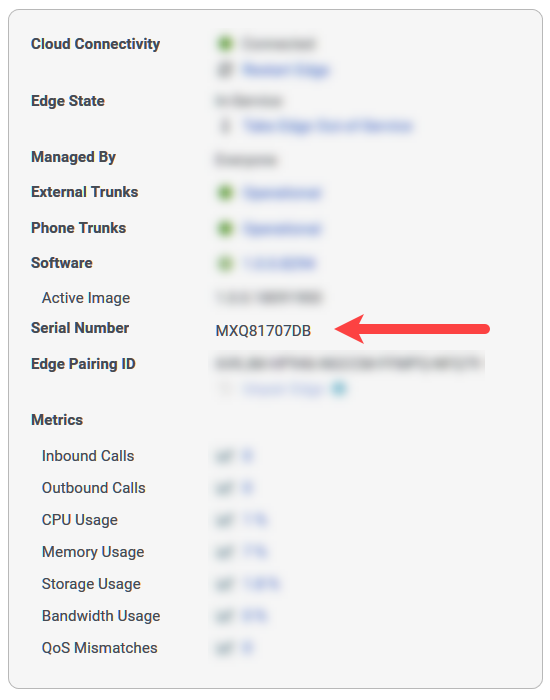
Edge standard
If the serial number begins with the letters CCP, then it is a Edge Standard v1. If the serial number begins with any other letters or numbers, then it is either an Edge Standard v2 or an Edge Standard v3.
To determine whether it is a Standard v2 or a Standard v3:
- Take note of the serial number.
- Access the Hewlett Packard Enterprise Support Services Central site.
- Enter the serial number when prompted.
If the result is HPE DL60 Gen9, then you have a Edge Standard v2.
If the result is HPE DL360 Gen10, then you have a Edge Standard v3.
Edge Mini or an Edge Micro
If the serial number begins with the letters KSA or ACG, then it is either an Edge Mini or an Edge Micro. Unfortunately, you can’t actually differentiate the Edge Mini and the Edge Micro from the serial number. To tell them apart, you have to have physical access to the device.
The Edge Mini and the Edge Micro are physically identical in that they both use the same chassis, so telling them apart depends on when they were manufactured.
In some cases, you can tell them apart by the model number found on the sticker on the bottom of the chassis.
- If the model number is ARK-1550-S9A1E, then you have an Edge Mini.
- If the model number is ARK-1550-S6A1E, then you have an Edge Micro.
If the model numbers do not correspond to this scheme, the only way to distinguish between them is by the size of the hard disk. The Edge Micro has a 256 GB hard disk while the Edge Mini has a 512 GB hard disk. You can slide out the externally removable solid-state drive to examine them.
Genesys recommends labeling the Mini and Micro Edges when you receive them.
Why can’t I find the chat group to receive webhook notifications?
You must be a member of owners-only or members-only Genesys Cloud groups to administer chat notifications (webhooks) to those groups. If you are not a member of those groups, you won’t find them when you attempt to specify the Chat Target in the Genesys Cloud configuration. Ask the owners of those groups to add you as a member and then remove you when the configuration is completed.Note: You can administer notifications to public groups without being a member.
How much storage do I have for my documents?
If you are using a Genesys Cloud Communicate license, then you have 2TB of storage available per organization.
If you are paying for a Genesys Cloud CX 1, Genesys Cloud CX 2, or Genesys Cloud CX 3 license, then you have unlimited storage available for all users.
See also How many documents can I upload?
Can we implement our own STUN/TURN server to proxy connections to Genesys Cloud?
No. Genesys Cloud does not support the use a private STUN/TURN server nor does it support private proxy servers. Genesys Cloud provides STUN and TURN services; in addition, it leverages Google’s global network of STUN (not TURN) servers for faster and better NAT traversal. If you disable them, then you will experience broken or slow NAT traversal during the connection of features like video chat or WebRTC phones.
How can I set up inbound faxing for Genesys Cloud BYOC?
Add the Conversation > Fax > Send and Conversation > One Number Fax > Receive permissions to the user. No default roles include these permissions, so add them to a new or existing role and then add that role to the user. For more information about roles and permissions, see Products, roles, and permissions list.
Can I make and receive calls when I am logged off of Genesys Cloud?
If you have a physical phone set as your default phone, then you can make and receive calls on that phone even if you are logged off of Genesys Cloud. Ask your administrator if you are unsure which phone is your default phone. If you are an administrator and want more information about how to assign a default phone to a user, see Assign a default phone.
If you do not have a physical phone set as your default phone and are logged off of Genesys Cloud, then you can still receive calls to your phone number in Genesys Cloud. Before you log off, enable call forwarding. Genesys Cloud forwards any calls made to your Genesys Cloud number to the number of your choice.
How are faxes sent and received in Genesys Cloud?
When a user sends a fax, Genesys Cloud converts the file to TIF file format and sends it to the appropriate device depending on your telephony connection. If you are using BYOC Premises, that location is an onsite edge device. If you are using either BYOC Cloud or Genesys Cloud Voice, that location is a cloud media device.
The device then sends the file to the user-entered number using your SIP trunks. If the file did not originate in Documents, Genesys Cloud also stores the original file in its original format in the user’s workspace in Documents. For information about how to send a fax from Genesys Cloud, see Send a fax.
Since a user has the same number for both incoming calls and faxes, the device must detect whether an incoming call is a voice call or fax. If fax detection is enabled and the device detects incoming fax tones, it negotiates the T.30 transmission, receives the image data, and sends the file to Genesys Cloud in TIF format. Genesys Cloud then converts the TIF file to a PDF file and sends it to both the user’s inbox and workspace in Documents. For information about how to view received faxes in Genesys Cloud, see View faxes in the inbox.
- Genesys Cloud supports faxing the following file types: .tiff, .pdf, .doc, .docx, and .odt.
- Genesys Cloud supports fax documents of up to 100 pages and 10 MB. If you must send a longer document, Genesys recommends that you divide the document into smaller parts.
- Documents to be faxed cannot be password-protected.
What public IP addresses does Genesys Cloud use?
Genesys Cloud uses public IP addresses provided by Amazon. These public IP addresses change frequently. For more information, see About ports and services for your firewall.
What permissions are not associated with a default role?
Some permissions are not associated with any default roles in Genesys Cloud. For a complete list of permissions not assigned to a role by default, see the unassigned tab in the Products, roles, and permissions list.
If you want your users to have these permissions, add the permission to a default or user-added role and assign the role to the users you want to have the permission.
Which additional roles do contact center agents and supervisors need?
Contact center agents and supervisors need extra roles assigned to them so they can see the features they need to complete their work.
- Agents need the User role in addition to the Genesys Cloud User role.
- Contact center supervisors need the Supervisor role in addition to the Genesys Cloud Supervisor role.
Why is a user not receiving calls through their assigned DID number or extension?
If a user has a DID number or extension assigned to them and they cannot receive calls through that DID number or extension, check the following:
- If the user has both a DID number and extension, the DID number and extension are entered as different phones in the user’s Contact Information section in their profile. The DID number and extensions are considered different numbers and cannot be entered as the same phone. See Set your contact options.
- The DID number and extension are listed and defined in the DID or extension pools.
- The user has the proper license type, roles, and permissions. See Check a user’s permissions.
How can I enable voicemail for users?
To receive voicemail, a user must have the Voicemail > Voicemail > Receive permission enabled. This permission is assigned to the Communicate – User role by default. If a user is assigned the Communicate – User role, the voicemail option should appear. If the voicemail option does not appear, see Products, roles, and permissions list for instructions on how to add the voicemail permission. You can also add the Voicemail > Voicemail > Receive permission to other roles. For more information, see Roles and permissions overview.
To view your voicemails, see Access your voicemail.
Why do calls disconnect when routed to an inbound call flow?
Automatic speech recognition (ASR) is enabled by default for the starting menu of new call flows. If no ASR terms are defined on the starting menu, the system can disconnect the caller. To prevent unintentionally disconnecting callers, define valid ASR terms for the menu options or override ASR for the call flow. See Basic flow design steps and Set up the starting menu.
How do I find my organization ID?
To view your organization ID, follow these steps:
- Click Menu > Account > Organization Settings.
- Click Advanced.
Genesys Cloud displays your organization ID.
How can I check for outages, availability, and the system status of Genesys Cloud?
Click the link below for Genesys Cloud’s operational, system availability, incident, and outage information. Use the Subscribe to Updates button to receive status updates through email, SMS notifications, or RSS or Atom feeds.
Why are calls not recording?
Call recording requires that Line Recording is enabled on the SIP trunk by a telephony admin. Complete the Enable recording on the trunk procedure.
Why do some webhook notifications not show up in my target chat rooms?
There is a rate limit of 10 webhook notifications per second. If you are seeing some notifications but not others, try narrowing the focus of the webhook mappings by adding more filters.
How do I enable company directory support on menus in Architect?
Open the flow for which you want to enable company directory support and in the flow’s Settings area, select Recording and Speech Recognition. In the Recording and Speech Recognition design area, under General Speech Settings, complete the following steps:
- Select the Enable speech recognition for the entire flow check box.
- From the Company Directory list, select the Enable for entire flow check box.
Can Genesys Cloud connect to another PBX?
Genesys Cloud can connect to any PBX that supports SIP. However, Genesys Cloud cannot currently share data, such as status or prior input, with these PBXs.
How do I select my region?
When you log in to the browser app, desktop app, or mobile app, you are prompted to select the region where your organization was created, for example, Americas (US East), Americas (US East 2), Americas (US West), Americas (Canada), Americas (São Paulo), Asia Pacific (Mumbai), Asia Pacific (Seoul), Asia Pacific (Sydney), Asia Pacific (Tokyo), EMEA (Dublin), EMEA (Frankfurt), or EMEA (London). If you are already logged in, log out and log back in with the region selected.
Whether you are in the office, at home, or traveling, your access to Genesys Cloud is routed to the URL corresponding to the location of the Amazon data center for your region.
If you are unsure of your region, contact your Genesys Cloud administrator. Alternatively, try these work-arounds.
- First time log in: Access the Genesys Cloud login URL for each region. Log in will be successful only with the URL corresponding to your organization’s region.
- Currently logged in: (Web app only) The web app URL corresponds to your organization’s region.
Can I disable an invite link after I send it out?
Yes. Toggle the Open Admission switch to OFF in the Organization Settings. See Configure invite links.
Which Salesforce API does Genesys Cloud for Salesforce use?
Genesys Cloud for Salesforce is based on the Salesforce Open CTI APIs, which is what Salesforce currently supports. The CTI Toolkit has reached end of support with Salesforce and is not used with the integration.
For more information about the integration, see About Genesys Cloud for Salesforce.