Work plan configurations overview
Use work plans configurations to describe weekly, weekend, planning period, general, and day-level scheduling constraints. incorporates these constraints into the scheduling process. The work plans configurations page indicates whether the planning period is done on a monthly or weekly basis.
The system assigns agents to work plans configurations, not daily shift configurations. To target varying degrees of flexibility for sets of agents, you may want to create multiple work plans configurations.
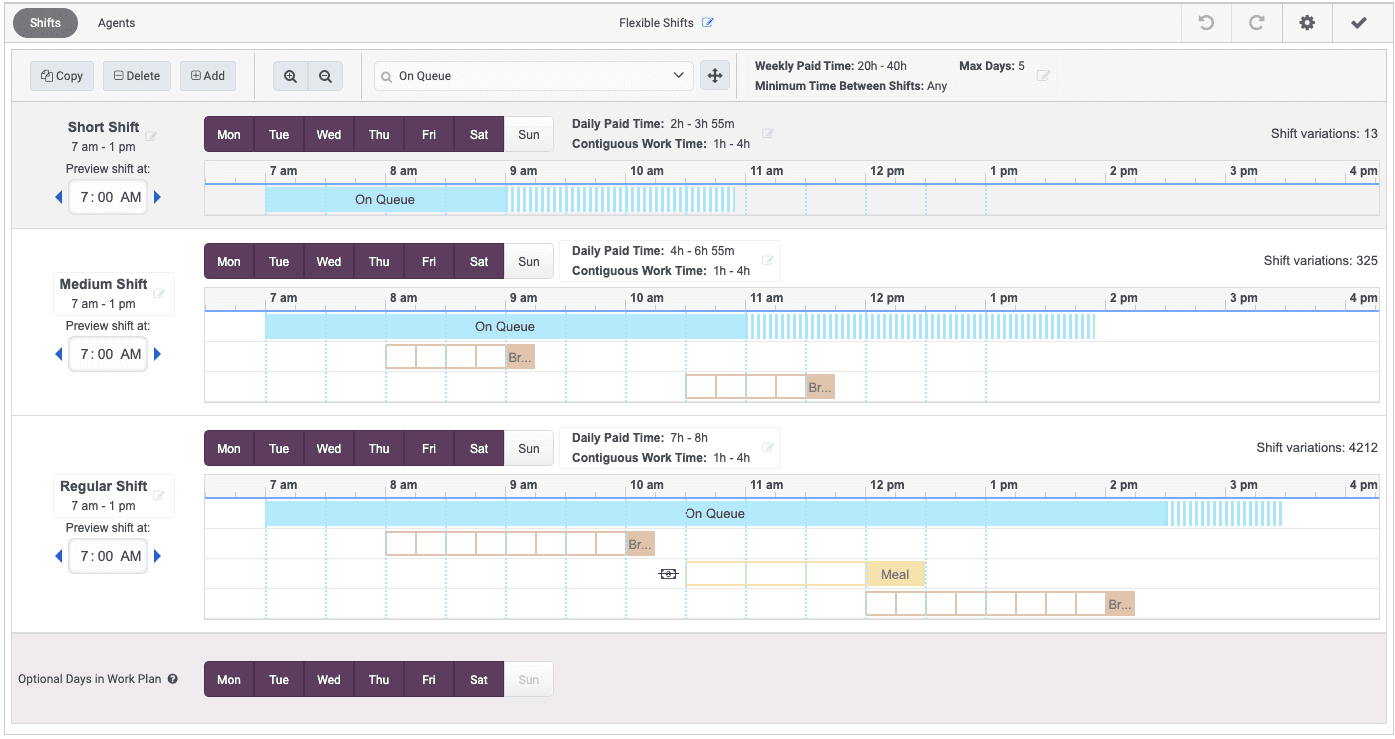
How does the scheduling engine choose shifts?
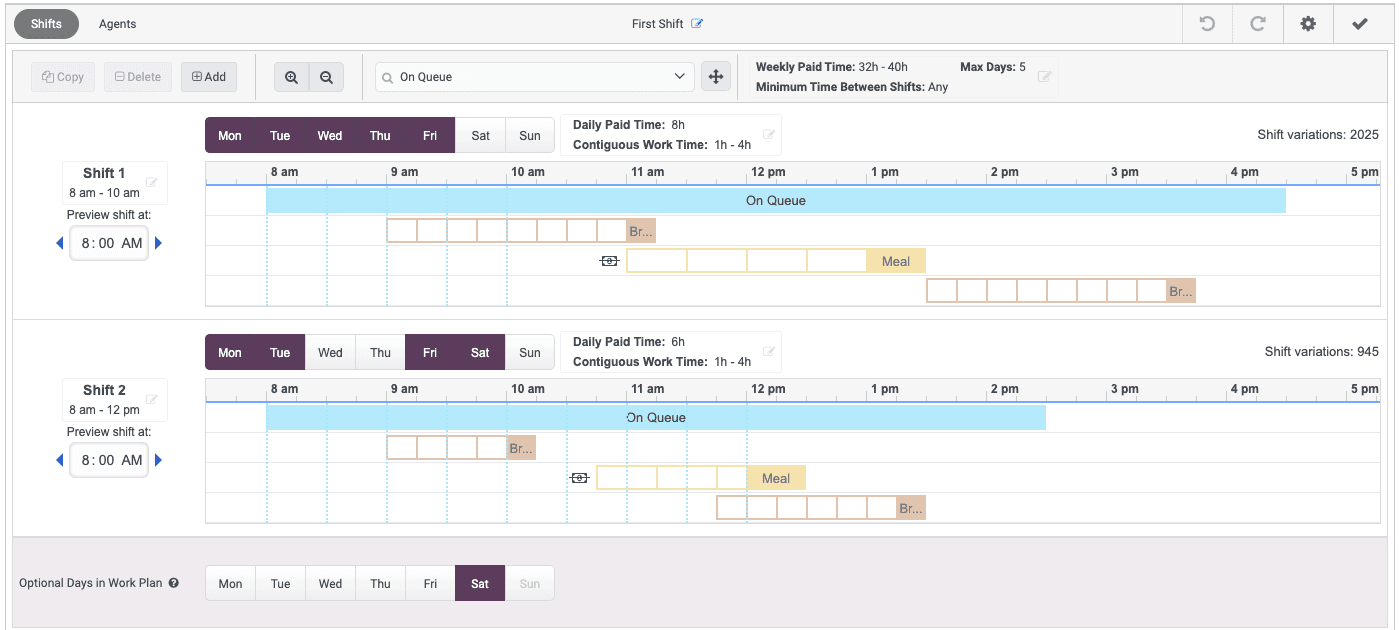
The scheduling engine selects exactly one daily shift for each day of the week that contains more than one selected daily shift, unless you select optional days. In this case, the scheduling engine can choose a daily shift or not. Under Optional Days in a Work Plan, direct the scheduling engine to choose a daily shift for the day or not by clicking the day or days in the Optional row.
The following table describes the fields in the Work Plans page.
| Field | Description |
|---|---|
| Copy Work Plans to Management Unit | Click to copy the selected work plan to a management unit. This option is displayed only when one or multiple work plans are selected. |
| Add | Opens the Add Work Plan window and specify the work plan settings. |
| Disable | If the work plans configuration is enabled for the selected management unit, click this button to disable it. |
| Refresh | Click to refresh the work plans on the Work Plan page. |
| Name | Select a work plans configuration to edit Week, Daily Shifts, or Agents configuration. |
| Agent Count | The number of agents included in the work plans configurations. |
| Min Weekly Paid Hours | The minimum number of hours paid weekly. |
| Max Weekly Paid Hours | The maximum number of hours paid weekly. |
| Max Days | The maximum number of days that you can schedule an agent per week. |
| Enabled | Indicates whether a work plan is in enabled status. The work plans that are enabled display a Yes. |
| Valid Work Plan | Indicates whether the work plan is valid status. Valid work plans display a Yes. |
| More | Click this button, and from the menu choose to:
|
For more information about work plans, see the tasks outlined in the following articles.
| Task | Description |
|---|---|
| Add a work plan configuration | Add a new work plan and configure week, daily shifts, and agent constraints. |
| Copy or delete a work plan | Copy or delete an existing work plan. |
| Copy or delete a shift | Copy or remove an existing shift from the work plan. |
| Filter and sort workforce management items | Depending on your view, you can narrow or categorize workforce management items for search purposes. |
| Manage agents in a work plan | Filter, sort, add, or delete agents from a work plan. |
| Manage a work plan’s daily shift | Adjust the work plan’s shift configuration. |
| Manage a work plan’s weekly configuration | Edit a work plan’s weekly configuration, including the work plan name, weekly paid time, minimum time between shifts, and number of days. |
| Manage daily shift activities in a work plan | Edit, copy, and delete daily shift activities in an existing work plan. |
| Navigate the work plan | Learn about the views and options available in the work plan. |
| Set up the work plan’s configuration | Set up the work plan’s weekly constraints for use when you create and maintain schedules. |
| Zoom in or out of a work plan shift | Drill down and view the shift in more detail, or view the shift at a higher level for a larger time period. |
[NEXT] Was this article helpful?
Get user feedback about articles.