User settings
To access user settings, from the Menu bar, click your avatar. Your user settings appear. 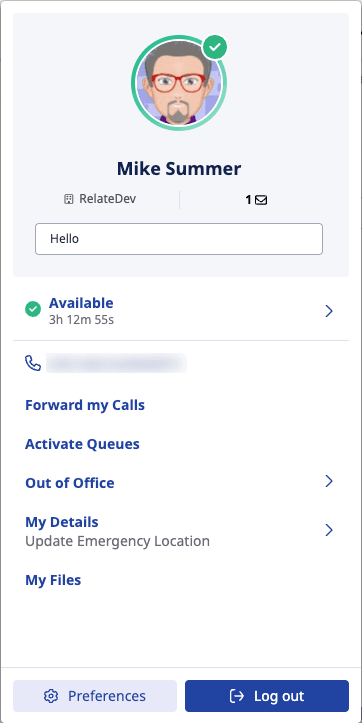
Configure user settings
| Setting | To configure |
|---|---|
| View your profile | To view and customize your profile, click the larger profile picture. For more information, see Profile page overview. |
| View your organization name | Your organization name appears below your name, next to the building icon. If you are a member of more than one organization, Genesys Cloud also shows the name of the organization you are currently logged into. For more information, see Organization names and log in. |
| Add a custom message | To provide additional information about your presence, status, or location, for example, “Back at noon,” in the Hello box, type a brief message. For more information, see Change presence and status. |
| View your current presence and status | Genesys Cloud displays your current status. Presence indicators appear as colored rings around profile pictures. Presence appears as the following:
To change your presence and status, click your current status and select the option you want. For more information, see Change presence and status. Genesys Cloud also displays the elapsed time for your status. Monitor the time spent on breaks and lunches. This setting applies to agents. For more information, see Status timer for agents |
| View your selected phone | To make and receive calls or to select a different phone, click your selected phone and update your Phone Details. For more information, see Select a phone and Select and configure the Genesys Cloud WebRTC phone. |
| Forward your calls | To enable call forwarding and to configure a forwarding number, click Forward My Calls and update the options in Phone Details. For more information, see Forward your calls. |
| Activate Queues (Agents) | To access the Active and Available Queues lists and to specify queues, click Activate Queues. This setting applies to agents. For more information, see Choose queues to work. |
| Set Out of Office status | To provide a start date and time for the periods you are away, click Out of Office. Optionally, include the end date and time. For more information, see Change presence and status. |
| My Details | My Details displays various details about you. These details include your job title and company, your geolocation, last login, and emergency address.
|
| Access your Preferences | To customize settings for sound, ringtones, notifications, chat, password, voicemail PIN, language and other options, click Preferences. Note: Some preferences are specific to the app you that you use: browser, Windows desktop, or Mac desktop. For more information, see Change web app preferences, Change Windows desktop app preferences, and Change Mac desktop app preferences. |
| My Files | Click my files to access the Documents dashboard. |
| Log out | To log out of Genesys Cloud, click Logout. For more information, see Log out. |
[NEXT] Was this article helpful?
Get user feedback about articles.