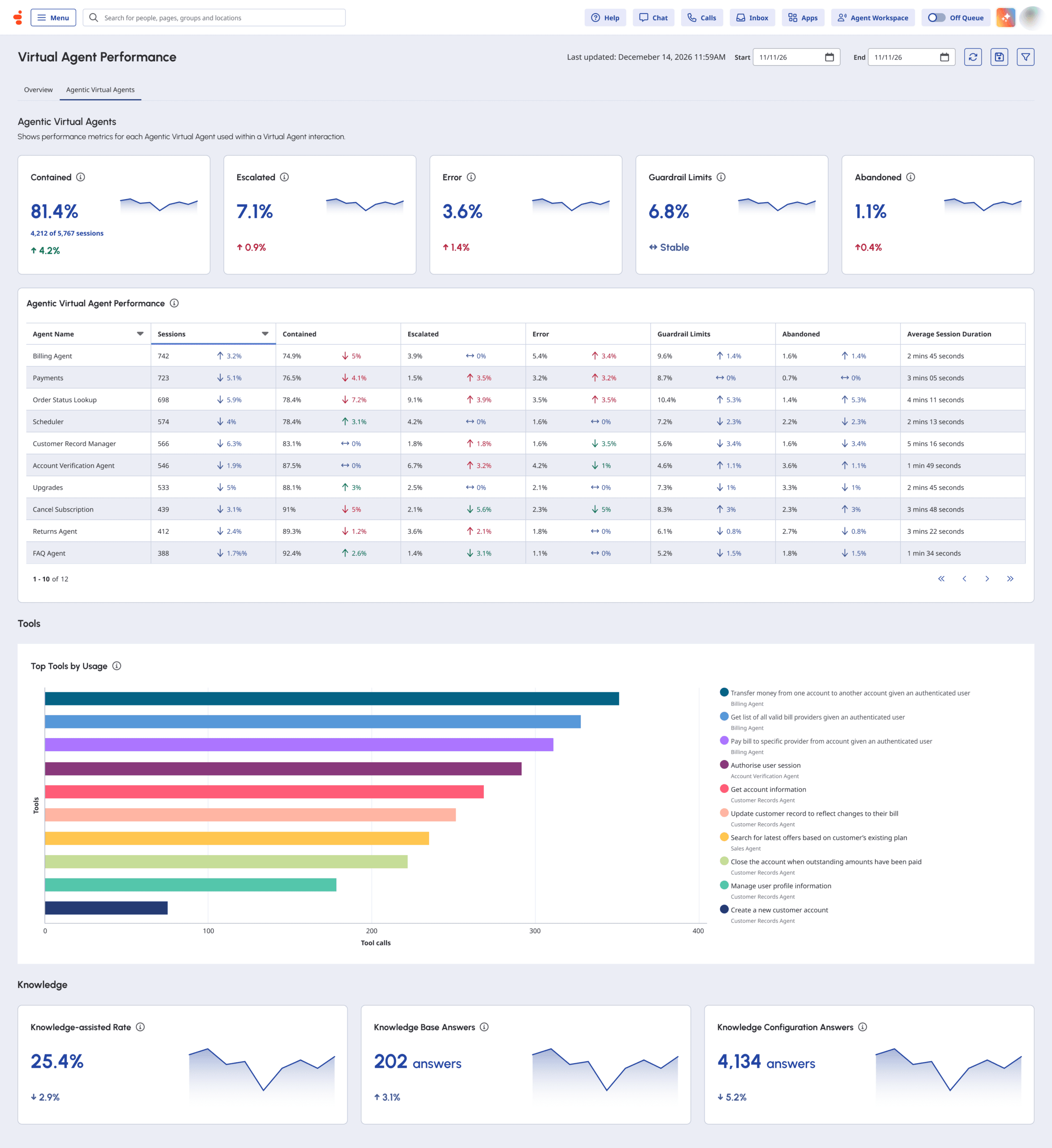
Genesys Cloud's Agentic Virtual Agent performance dashboard provides supervisors and AI builders with comprehensive monitoring capabilities for Agentic Virtual Agents (AVAs) through integrated conversation metrics, agent performance analytics, and tool execution tracking. Access to the dashboard requires specific permissions (Agentic > Virtual Agent – View and Analytics > agenticVirtualAgentAggregate – View) and is located via Menu > Analytics > Analytics Workspace by searching for "Agentic Virtual Agent Performance."
The dashboard employs a distinct measurement methodology compared to the traditional Virtual Agent performance dashboard. While the Virtual Agent dashboard measures overall bot flow session volume across both traditional and agentic agents, the Agentic Virtual Agent dashboard focuses exclusively on sessions where an AVA was invoked. This methodological difference results in varying total session counts, contained session numbers, and escalation metrics between the two dashboards, even when using identical reporting periods and filters. Users should select the appropriate dashboard based on specific reporting requirements—the Virtual Agent dashboard for comprehensive session volume across agent types, or the Agentic Virtual Agent dashboard for AVA-specific performance analysis.
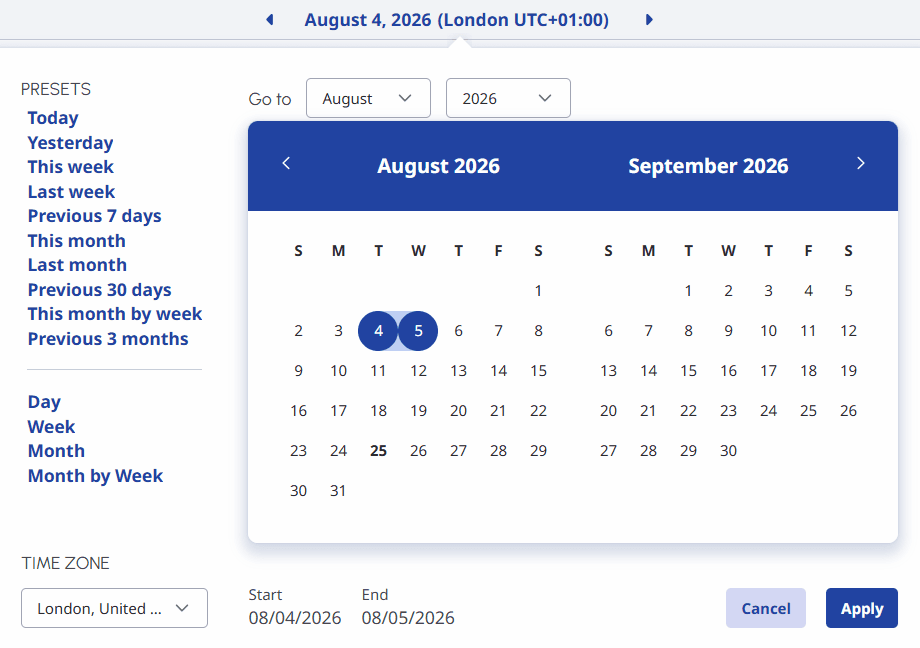
The dashboard supports flexible date filtering through predefined presets (Today, Yesterday, This week, Last week, Previous 7 days, This month, Last month, Previous 30 days, This month by week, Previous 3 months, Day, Week, Month, and Month by week) and custom date ranges up to 6 weeks. Users can configure time zone settings, save custom views with filter and column preferences, and utilize navigation arrows to view data across different periods using the same preset.
The filtering functionality enables analysis by virtual agents, media types (voice, chat, and message), and message types through a toggleable filters panel. The dashboard comprises two primary sections: Agentic Virtual Agents and Tools.
The Agentic Virtual Agents section displays high-level conversation outcome summaries, including the percentage of sessions successfully completed without escalation (Contained metric), transferred to human agents, ended due to application or processing errors, ended due to guardrail limit activation, and ended due to customer disconnection or session timeout. The AVA Performance table enables comparative analysis across multiple agents, sortable by agent name or total session volume, presenting key performance indicators including total sessions handled, containment percentage, escalation percentage, error percentage, guardrail violations, abandonment percentage, and average session duration. These metrics support evaluation of agent effectiveness, identification of interactions requiring human assistance, monitoring of improvement opportunities, and identification of optimization trends.
The Tools section tracks the most frequently used tools during specified reporting periods, displaying the top 10 tools by volume with associated AVA names and total tool calls. The Knowledge section measures AVA leverage of knowledge sources through three key metrics: Knowledge-assisted Rate (percentage of AVA sessions using knowledge sources with trend comparisons), Knowledge Base Answers (total successful responses from the knowledge base), and Knowledge Configuration Answers (successful responses using configured knowledge resources). These integrated analytics enable organizations to measure knowledge adoption effectiveness, understand knowledge-assisted interaction frequency and success, and evaluate how tool execution and knowledge integration contribute to overall agent performance and improved customer outcomes.
The Agentic Virtual Agent performance dashboard enables supervisors and AI builders to monitor the usage, outcomes, and performance of Agentic Virtual Agents (AVAs). The dashboard combines high-level conversation metrics, agent performance, and tool execution analytics to help supervisors understand how AVAs handle customer interactions and identify opportunities for improvement.
To access your AVA performance dashboard, perform the following:
Click Menu > Analytics > Analytics Workspace.
In the Default section, search for Agentic Virtual Agent Performance and then click the view name to open it.
Set a default time zone in the workspace
You can set the default time zone in the analytics workspace before viewing any analytics view.
To set the default time zone in the workspace, follow these steps:
Click Performance > Workspace.
Click Menu > Analytics > Analytics Workspace.
On the left side, from the Time zone drop-down menu, select the required time zone as the default time zone for the analytics workspace.
The dashboard provides insights into the performance of AVAs and their features.
To see the most current data, click Refresh .
To save the view with your filter and column settings, click Save View .
Understand session count differences between Virtual Agent and Agentic Virtual Agent performance dashboards
The Virtual Agent performance dashboard and the Agentic Virtual Agent performance dashboard measure session activity differently. As a result, the total session counts and individual session outcomes differ between the two dashboards, even when you select the same bot flow and reporting period.
The Virtual Agent performance dashboard provides an overall view of bot flow sessions, including both traditional virtual agent and agentic virtual agent sessions. In contrast, the Agentic Virtual Agent performance dashboard focuses specifically on sessions in which an Agentic Virtual Agent (AVA) was invoked.
The following table explains when to use each dashboard:
Use this dashboard
For
Virtual Agent performance dashboard
View the total session volume across traditional virtual agent and agentic virtual agent bot flows.
Agentic Virtual Agent performance dashboard
View the performance of Agentic Virtual Agents, including only sessions in which an agentic virtual agent was invoked.
When comparing the dashboards, consider the following:
Total sessions: The Virtual Agent performance dashboard includes sessions across virtual agent and agentic virtual agent bot flows, while the Agentic Virtual Agent performance dashboard counts sessions in which an agentic virtual agent was invoked.
Contained sessions: The number of contained sessions differs between dashboards because they report on different session scopes.
Escalated sessions: Escalation counts align more closely because both dashboards capture sessions involving escalation to a human agent. However, the counts are not guaranteed to match.
Note: Session counts and outcomes in the two dashboards are not directly comparable because they represent different reporting scopes. Sometimes, more discrepancies occur even when the same reporting period and filters are applied.
To customize analytics views, use the date filter.
To filter metrics by date or configure a custom date range, use presets. When filtering metrics for this view, select any custom date range up to 6 weeks.
To use a preset to filter metrics, complete the following steps:
To display the date filter, click the date.
In the Presets list, select a preset date option.
Date presets
Presets
Description
Today
Shows data for the time period that includes the current interval.
Yesterday
Shows data for the previous day.
This week
Shows data for a Sunday through Saturday time period.
Last week
Shows data for the previous week, Sunday through Saturday.
Previous 7 days
Shows data for the previous seven days.
This month
Shows data for the current month, with no extra days.
Last month
Shows data for the previous calendar month with no extra days.
Previous 30 days
Shows data for the previous 30 days.
This month by week
Shows data for the current calendar month starting on Sunday and ending on Saturday, including extra days if the month does not start on Sunday or end on Saturday.
Previous 3 months
Shows data for the previous 3 months. For example, Nov 1, 2022 – Jan 31, 2023.
Day
Shows data for a single 24-hour day.
Week
Shows data for a Sunday through Saturday time period.
Month
Shows data for the exact month with no extra days. If the current month is selected, you can see the data up to the current date.
Month by Week
Shows data for a calendar month starting on Sunday and ending on Saturday, including extra days if the month does not start on Sunday or end on Saturday.
To use a custom date range to filter metrics, complete the following steps:
Click the date to display the date filter.
Select a start date and an end date on the calendar.
Click Apply.
To view data for a different time period using the same date presets, click the arrows on either side of the date display. For example, to view data for the previous day, click the Day preset, and then click the arrow on the left side of the date.
To view data for a different time zone using the same date presets, from the Time zone drop-down menu, select the required time zone. You can create and save reports with the same selected time zone.
When each row shows a day, click a row to view that day’s 30-minute intervals.
You can filter the information by virtual agents, media types, and message types. The supported media types are voice, chat, and message.
To filter the information:
Click Toggle filters panel .
Search or scroll to select the filter you want to use. The dashboard reflects the data based on one or more filters selected.
The Agentic Virtual Agents performance dashboard has two sections as follows:
Agentic Virtual Agents
Tools
In this section, let us discuss them in detail.
Agentic Virtual Agents
The Agentic Virtual Agents section provides a high-level summary of conversation outcomes for your AVAs during the selected time period. This section provides insights about the following:
The percentage of sessions that were successfully completed by the AVA without escalation.
The percentage of sessions that were transferred to a human agent.
The percentage of sessions that ended because of an application or processing error.
The percentage of sessions that ended because the AVA reached a configured guardrail limit.
The percentage of sessions that ended because the customer disconnected or the session timed out before the interaction was completed.
Use this section to:
Evaluate how effectively your agents resolve customer interactions.
Identify conversations that require human assistance.
Monitor outcomes that indicate opportunities for improvement.
Assess overall AVA performance.
Identify trends that require more investigation or optimization.
Contained
Displays the percentage of Agentic Virtual Agent sessions that completed successfully. This metric applies only to the AVA session and does not indicate whether the customer’s overall interaction was fully self-served or included assistance from a live agent.
This widget displays:
Percentage of contained sessions
Number of contained sessions out of total sessions
Trend compared with the previous time period
Escalated
Displays the percentage of AVA sessions that are transferred to a human agent. This metric helps you identify how often conversations require agent assistance and evaluate opportunities to improve automation.
This widget displays:
Percentage of escalated sessions
Trend compared with the previous time period
Error
Displays the percentage of sessions that ended because of an application or processing error.
This widget displays:
Percentage of sessions ending in error
Trend compared with the previous time period
Guardrails
Displays the percentage of sessions that ended because the AVA reached a configured guardrail limit. Guardrails help ensure that conversations remain within configured safety and operational boundaries. This metric helps you understand how often guardrail policies affect customer interactions.
This widget displays:
Percentage of sessions affected by guardrails
Trend compared with the previous time period
Abandoned
Displays the percentage of sessions that ended because the customer disconnected or the session timed out before reaching a successful outcome. This metric helps you identify sessions where customers left after receiving the information they needed and sessions that ended before a successful outcome.
This widget displays:
Percentage of abandoned sessions
Number of abandoned sessions out of total sessions
Trend compared with the previous time period
Agentic Virtual Agent Performance
The AVA performance table summarizes the performance of each AVA during the selected time period. This metric helps you compare AVAs, identify trends, and determine which agents require optimization.
This AI agent performance section provides the following metrics.
Column
Description
Agent Name
Name of the AVA.
Sessions
Total number of sessions handled by the AVA during the selected time period.
Contained
Percentage of sessions completed successfully without escalation.
Escalation
Percentage of sessions transferred to a human agent.
Error
Percentage of sessions that ended due to an error.
Guardrails
Percentage of sessions that ended because the AVA reached a configured guardrail limit.
Abandoned
Percentage of sessions that ended because the customer disconnected or the session timed out before completion.
Average Duration
Average length of AVA sessions during the selected reporting period.
You can sort the table by Agent Name or Sessions. Percentage-based columns display the rate for each outcome and are not sortable.
Tools
The tools section provides insights into how your AVAs use tools to fulfill customer requests during conversations.
The tools section provides insights about the following:
Tools that were used most frequently during the selected time period, including the associated AVA, total tool calls, and usage trends.
Percentage of AVA sessions that used either the knowledge base or knowledge configuration to assist in resolving customer requests.
Number of successful responses generated using the knowledge base.
Number of successful responses generated using knowledge configuration.
This metric helps you:
Understand the tools that are used most frequently.
Identify trends in tool usage.
Evaluate how tool execution contributes to overall agent performance.
Improve automation and customer outcomes.
Top Tools by Volume
The Top Tools by Volume chart displays the 10 most frequently executed tools during the selected reporting period.
For each tool, the chart includes the following:
Column
Description
Tool
Name of the tool and the AVA that used it.
Tool Calls
Total number of times the tool was used during the selected time period.
This metric helps you:
Identify the most frequently used tools across your AVAs.
Monitor changes in tool usage over time.
Understand which AVAs rely on specific tools.
Identify opportunities to optimize tool usage and improve agent performance.
Knowledge
The Knowledge section provides insights into how AVAs use knowledge sources to assist customers during conversations.
This metric helps you:
Measure the adoption and effectiveness of knowledge-assisted interactions.
Understand how often the knowledge base and knowledge configuration contribute to successful customer responses.
Knowledge-assisted Rate
Displays the percentage of AVA sessions that used knowledge sources to assist in resolving customer requests during the selected time period. This metric helps you understand how frequently your AVAs leverage knowledge sources to generate responses and support customer interactions.
This widget displays:
Percentage of total AVA sessions that used knowledge resources.
Trend compared with the previous time period.
Trend chart showing changes in knowledge-assisted sessions over time.
Knowledge Base Answers
Displays the total number of successful responses generated using the knowledge base during the selected reporting period. This metric helps you understand how often your AVAs successfully retrieve and use the knowledge base content to answer customer requests.
This widget displays:
Total number of successful knowledge base answers.
Trend compared with the previous time period.
Trend chart showing changes in successful knowledge base answers over time.
Knowledge Configuration Answers
Displays the total number of successful responses generated using knowledge configuration during the selected time period. This metric helps you understand how often your AVAs successfully use configured knowledge resources to answer customer requests.
This widget displays:
Total number of successful knowledge configuration answers.
Trend compared with the previous time period.
Trend chart showing changes in successful knowledge configuration answers over time.