View your schedule
Note: This article applies to Genesys Cloud Embeddable Framework, Genesys Cloud for Chrome, Genesys Cloud for Firefox, Genesys Cloud for Microsoft Teams, Genesys Cloud for Salesforce, and Genesys Cloud for Zendesk.
If your administrator granted you permission, you can quickly view your schedule in the client.
- Click Menu > Agent Schedule.
The schedule opens to the current day.
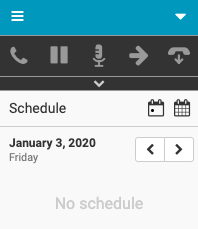
- To view your schedule other days, use either the single day view or the month overview.
- Single day view (default)
- To move between days, click Previous Day or Next Day .
If a shift spans two days, the date appears under the relevant time (12:30 AM in the example).
- To return quickly to the current day, click Today .
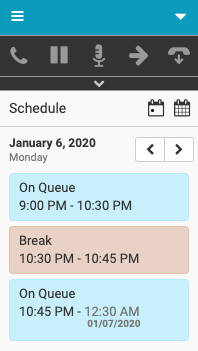
- To move between days, click Previous Day or Next Day .
- Month overview
- Click Toggle Calendar .
A red dot indicates all days that you have an assigned schedule.
Note: Assigned schedules include approved time off. - Click any day to see the schedule for that day.
- To return quickly to the current day, click the day in the calendar or click Today .
- To switch from a month overview to a single day view, click Toggle Calendar .

- Click Toggle Calendar .
- Single day view (default)
For more information, see Client interface, Access schedule notifications, About workforce management, and About workforce management for agents.
For more information about the integrations, see About Genesys Cloud Embeddable Framework, About Genesys Cloud for Salesforce, About Genesys Cloud for Microsoft Teams, and About Genesys Cloud for Zendesk.
[NEXT] Was this article helpful?
Get user feedback about articles.