Configure the start and exit behavior of an agentic virtual agent
Series: Create an agentic virtual agent
Previous suggested step: Connect an agentic virtual agent to a knowledge fabric configuration
Next suggested step: Set guardrails for an agentic virtual agent
You can provide any starting context that helps the agentic virtual agent at the start of an interaction. Then, define how the agent behaves when ending a session on the Configuration tab.
The start context originates from the Architect Virtual Agent flow. For example, if the flow author wants to pass some Participant Data to the agentic virtual agent.
Configure starting context
- Click Menu > Orchestration > AI Studio > Agentic Virtual Agents.
- (Optional) To search for a specific agent, start typing the name of the agent in the search box. As you type, the matching agents are shown.
- To open an AI agent, click the agent’s tile. The Agent profile view opens.
- Select the Configuration tab.
- Under Start Context, click Add. The right pane expands.
- In the right pane, enter these details:
- Name: The name of the variable. For example, “customer_name.”
- Type: The data type of the variable.
- Description: A short description about the variable.
- Click Create.
- Add as many starting variables as needed for your agent.
Define exit behavior
- Under Session end in the Configuration tab, configure the following options:
- In the Exit response field, enter the message that the agent sends when the participant ends the interaction or if an error occurs.
- In the Escalation response field, enter the message that the agent sends while it transfers the interaction to a human agent.
- Click Save.
Agent escalation settings
The agent escalation feature allows the agentic virtual agent to transfer the interaction to a human agent when the participant requests to speak to a human agent. The voice bot or digital bot flow that calls the agentic virtual agent dictates whether the agent escalation is enabled or not.
The following inheritance rules apply:
- If you enable agent escalation in the bot flow’s event handling settings, the agentic virtual agent also enables it.
- If you disable agent escalation in the bot flow’s event handling settings, the agentic virtual agent also disables it. Regardless of the bot flow’s event handling settings, the Preview widget in agentic virtual agent always enables agent escalation.
Also, if the bot flow has escalation handling set to Exit the flow, the agentic virtual agent uses the escalation exit response that is set in the Configuration tab of the agent. If the bot flow has escalation handling set to Jump to Reusable Task, then the escalation exit response from the agentic virtual agent is not used. For more information about agent escalation in bot flows, see Agent escalation in voice and digital bot flows.
Navigating the agentic virtual agent profile
The profile contains the following sections and a preview widget:
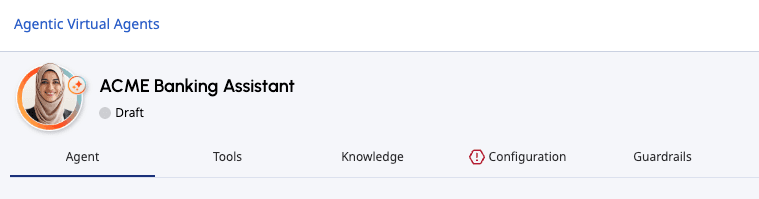
You can switch to any of the sections of the agentic virtual agent while creating a new agent, editing an existing agent, or viewing an agent. Any incomplete section is indicated by the icon preceding the section name. You can save an agent with an incomplete section but you cannot publish the agent until all sections are complete.
After you have completed all necessary sections of the agent setup, you can click Publish to publish the flow.

[NEXT] Was this article helpful?
Get user feedback about articles.