Configure Genesys Cloud campaign setting information
Series: Create a campaign setting
Previous suggested step: Create a campaign setting
Next suggested step: Configure phone type management
Launch the Lightning app for campaign management with the Genesys Cloud objects added as custom tabs. Use the New Campaign Setting option to create a campaign setting. Using this option ensures that you are creating the campaign setting in the desired Genesys Cloud organization in a multi-org setup.
- From the Lightning app navigation menu, select Genesys Cloud Campaign Settings.
- In the Recently Viewed section, click New Campaign Setting.
- Enter the campaign details in the New Genesys Cloud Campaign Setting wizard.
The integration populates the lookup fields and lists with data synced from your Genesys Cloud organization when you retrieved the Genesys Cloud campaign options.
Tip: If you do not see items that you expect in the lookup fields or lists, confirm that the items exist in your Genesys Cloud organization and then click Retrieve Options. - Enter the following details in the General Information:
- Genesys Cloud Organization: Select the Genesys Cloud organization in which you want to create the campaign setting.
- Division: Specify a division of users within your Genesys Cloud organization to whom access to campaign data will be restricted. Start typing a division name and select a division from the suggested list.
For more information, see Divisions overview and Retrieve Genesys Cloud campaign options.
Note: You cannot change a campaign’s division by modifying it in the campaign setting. Changing the division in a campaign setting that is associated with an active campaign results in an error. Genesys recommends that you create a new campaign with the updated campaign settings. - Genesys Cloud Campaign Setting Name: Enter the name for the campaign setting.
- Caller ID: Phone Number: Enter the phone number that you want to appear to people contacted during the campaign.
- Caller ID: Name: Enter the name that you want to appear to people contacted during the campaign.
- Dialing Mode: Select the dialing mode for contacts.
For more information, see Dialing modes.
- Skip Preview: Select this option that determines whether agents see a contact’s information and the script before dialing.
For more information, see Accept or skip a previewed call.
Click Next.
- Enter the Genesys Cloud Settings:
- Genesys Cloud Queue: Choose the specific Genesys Cloud queue to route the campaign calls.
For more information, see Queue administration.
- Genesys Cloud Script: Select the script in your Genesys Cloud organization that you want the agents to use.
For more information, see About scripting.
Click Next.
- Genesys Cloud Queue: Choose the specific Genesys Cloud queue to route the campaign calls.
- Enter the additional cloud settings that are mandatory or optional based on the dialing mode selected:
- Genesys Cloud DNC: Select the Do Not Contact list in your Genesys Cloud organization that you want to use.
For more information, see Do not contact lists view.
- Genesys Cloud Contactable Time Set: Set the time zone and time definition in your Genesys Cloud organization when the integration calls people.
For more information, see About outbound dialing.
- Genesys Cloud Edge Group: Associate the Edge devices in your Genesys Cloud organization that you want to use to route calls.
For more information, see About Edge groups.
- Genesys Cloud Site: Associate the Sites in your Genesys Cloud organization that you want to use to route calls.
For more information, see About sites.
- Genesys Cloud Call Response: Select the settings in your Genesys Cloud organization that determines how the campaign responds to live persons, answering machines, and other scenarios.
For more information, see Call analysis responses page.
Click Next.
- Genesys Cloud DNC: Select the Do Not Contact list in your Genesys Cloud organization that you want to use.
- Select the following options and values for the campaign:
- Sort List Numerically: Select this option if you want the integration to sort the Genesys Cloud contact list in numeric order.
Order is based on a value that you add to the Sort Order field on campaign members records. For more information, see Configure the sort order of campaign members.
- Sort List Ascending: Select this option if you want the integration to sort the Genesys Cloud contact list alphabetically in ascending order.
Order is based on a value that you add to the Sort Order field on campaign members records. For more information, see Configure the sort order of campaign members.
Enable Automatic Time Zone Mapping: Enable this option for automatic time zone mapping (ATZM) that is supported only for phone numbers. ATZM supports only NANP numbers (US, Canada, and some Caribbean islands), US zip codes, and Canada postal codes.
Zip Code Column: Select this option to automatically show the campaign member fields you have chosen for the Zip Code Column in the global campaign settings. For more information, see Configure zip code column.
- Enable Agent Owned Dialing: Configure the integration to route interactions to agents assigned to the corresponding campaign members.
This selection cannot be changed when a campaign is running and requires that you select Preview Dialing as the Dialing Mode. For more information, see Agent-owned records for preview campaigns.
- Agent Owned Column: Displays the campaign member field selected in the Agent Owned Column section.
This field is automatically populated when you click Save. For more information, see Configure the agent-owned column.
- Sort List Numerically: Select this option if you want the integration to sort the Genesys Cloud contact list in numeric order.
- Click Save.
Add call rule set
After you save the campaign settings, you can add the call rule set to the campaign setting from the Related section:
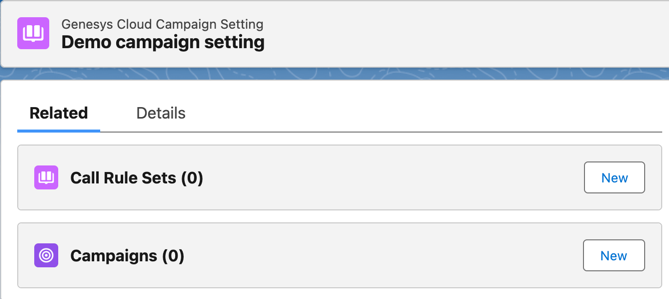
To add a call rule set to the campaign setting:
- In the Related section, click New for Call Rule Sets.
- In the Genesys Cloud Call Rule Set box, start typing the name of the call rule set and select the rule set from the suggested list.
- Click Save.
For more information, see Set up campaign management in CX Cloud from Genesys and Salesforce.
Use the Genesys Cloud Campaign Settings tab that was created previously. For more information, see Create a campaign setting.
- On the Setup Home page in Salesforce, click the App Launcher icon.
- Search for Genesys Cloud Campaign Settings in the Search apps and items box and click Genesys Cloud Campaign Settings from the list.
- In the Recently Viewed section, click New.
- Enter information for the following items:
The integration populates the lookup fields and lists with data synced from your Genesys Cloud organization when you retrieved the Genesys Cloud campaign options.
Tip: If you do not see items that you expect in the lookup fields or lists, confirm that the items exist in your Genesys Cloud organization and then click Retrieve Options.Note: Depending on the dialing mode selected, the following fields are required or optional.- Genesys Cloud Campaign Setting Name: Enter the name of the campaign setting.
- Division: Specify a division of users within your Genesys Cloud organization to whom access to campaign data will be restricted.
Defaults to the Home division. For more information, see Divisions overview and Retrieve Genesys Cloud campaign options.
- Dialing Mode: Select the dialing mode for contacts. For more information, see Dialing modes.
- Genesys Cloud Queue: Choose the specific Genesys Cloud queue to route the campaign calls.
For more information, see Queue administration.
- Skip Preview: Select this option that determines whether agents see a contact’s information and the script before dialing.
For more information, see Accept or skip a previewed call.
- Caller ID: Phone Number: Enter the phone number that you want to appear to people contacted during the campaign
- Caller ID: Name: Enter the name that you want to appear to people contacted during the campaign.
- Genesys Cloud Script: Select the script in your Genesys Cloud organization that you want the agents to use.
For more information, see About scripting.
- Genesys Cloud DNC List: Select the Do Not Contact list in your Genesys Cloud organization that you want to use.
For more information, see Do not contact lists view.
- Genesys Cloud Contactable Time Set: Set the time zone and time definition in your Genesys Cloud organization when the integration calls people.
For more information, see About outbound dialing.
- Genesys Cloud Edge Group: Associate the Edge devices in your Genesys Cloud organization that you want to use to route calls.
For more information, see About Edge groups.
- Genesys Cloud Site: Associate the Sites in your Genesys Cloud organization that you want to use to route calls.
For more information, see About sites.
- Genesys Cloud Call Response: Select the settings in your Genesys Cloud organization that determines how the campaign responds to live persons, answering machines, and other scenarios.
For more information, see Call analysis responses page.
- Genesys Cloud Call Rule Set: Select the settings in your Genesys Cloud organization that trigger actions based on certain conditions.
Select one or more rule sets and then click Arrow . For more information, see Rule management overview.
- Sort List Numerically: Select this option if you want the integration to sort the Genesys Cloud contact list in numeric order.
Order is based on a value that you add to the Sort Order field on campaign members records. For more information, see Configure the sort order of campaign members.
- Sort List Ascending: Select this option if you want the integration to sort the Genesys Cloud contact list alphabetically in ascending order.
Order is based on a value that you add to the Sort Order field on campaign members records. For more information, see Configure the sort order of campaign members.
- Enable Agent Owned Dialing: Configure the integration to route interactions to agents assigned to the corresponding campaign members.
This selection cannot be changed when a campaign is running and requires that you select Preview Dialing as the Dialing Mode. For more information, see Agent-owned records for preview campaigns.
- Agent Owned Column: Displays the campaign member field selected in the Agent Owned Column section.
This field is automatically populated when you click Save. For more information, see Configure the agent-owned column.
- Click Save. The information you entered is saved as the Genesys Cloud Campaign Setting details.
For more information, see About Campaign Management.
For more information about the integration, see About Genesys Cloud for Salesforce.
[NEXT] Was this article helpful?
Get user feedback about articles.