Access voicemail and recordings in CX Cloud
CX Cloud lets you access and manage both personal voicemails and group voicemails directly from the user inbox component. The user inbox provides a unified view of all voicemails, along with options to play, organize, forward, and download them.
When your administrator has added the user inbox component, you can see if you received a new personal or group voicemail and easily access it within Salesforce. You also get to access your call recordings that you have recorded and stored via Genesys Cloud.
- Open the contact center app in Salesforce Service Cloud Voice.
- Open the user inbox component from the utility bar.
The user inbox lists your personal voicemails and any group voicemails for groups you belong to. If the component is docked in the utility bar, an unread count badge appears on the component icon. The badge count increases when a new voicemail is received and decreases when a voicemail is played, making it easy to identify voicemails that need attention.
The following illustration shows the voicemail component that opens from the utility bar:
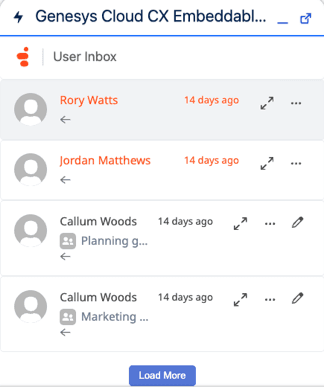
The voicemail entries in the inbox are visually distinguished:
- Group voicemails display a distinct group voicemail icon along with the caller’s name and name of the group the message was sent to.
- Unread voicemails that are not yet listened to appear with a visual unread indicator, regardless of type. Once played or manually selected as read, the indicator is removed.
Filter the voicemail
To focus on a specific type of voicemail, use the filter control at the top of the inbox. The available views are:
- Inbox – All, Personal, and Group voicemails.
- Status – All, Read, and Unread voicemails of both personal and group voicemail types.
Play a voicemail
To listen to a voicemail, click open a voicemail from the list and the playback controls appear. Use the embedded audio player to control playback. Playback controls work identically for personal and group voicemails.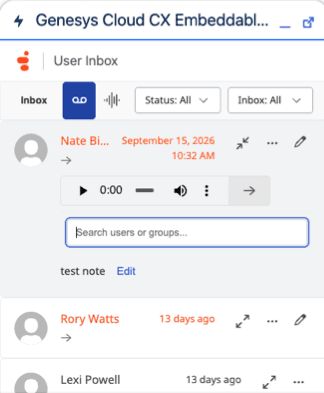
Manage voicemails
You can select the voicemail as unread or read, and delete it. You can manually update the read status of any voicemail without playing it.
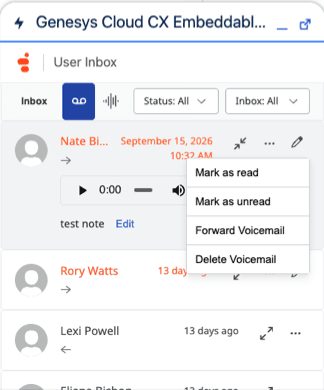
Forward voicemails
You can forward a personal or group voicemail to another agent or queue:
- Click the More icon in the voicemail entry.
- Select Forward voicemail.
- In the search field, search for and select the destination agent or queue.
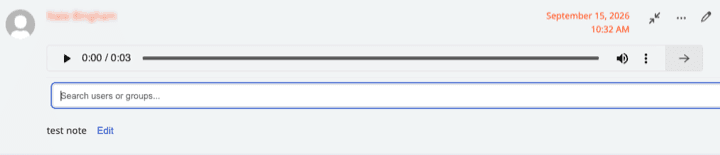
- Click the Forward icon.
The original caller information is retained on the forwarded message. Forwarding follows your existing Genesys Cloud permissions and routes only to users and queues within your organization.
Add or view notes on a voicemail
Notes let you and your team track context or follow-up actions directly on a voicemail entry.
- Click the Expand icon in the voicemail entry.
- Click Edit and type your notes in the Add notes to your voicemail text box.
- Click Save.
Download voicemails
To download the voicemail, click open a voicemail for the playback controls. In the playback controls, click More and then select Download.
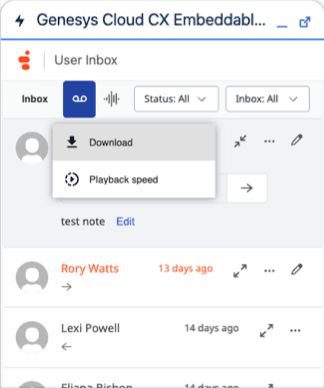
You can now access recordings that are stored in your Genesys Cloud inbox from the Recordings tab in the user inbox component. For more information about user recording, see Call recording overview in Genesys Cloud.
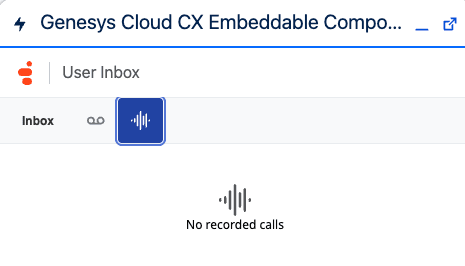
To open and play a recording, select a recording from the list. The playback control appears. You can now listen to, share, and manage recordings from the inbox. For more information, see Listen to recordings.
[NEXT] Was this article helpful?
Get user feedback about articles.