Add multiple callers to a call
To use multiparty calling features in Salesforce Voice, Salesforce Support must enable the required organization permissions for your Salesforce org. Contact Salesforce Support and request that they enable these permissions:
- Salesforce Voice: Multi-party conferencing
- Salesforce Voice: Multi-party consult
After Salesforce enables these permissions, the feature is automatically available and no additional administrator configuration is required.
Add participants to an active voice call
To add callers to an ongoing voice call:
- In the Omni-Channel widget, click the Add User button.
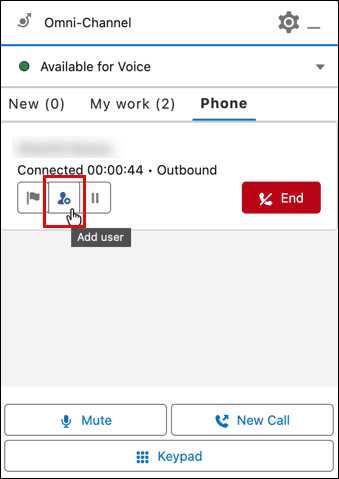
- To initiate the call, perform one of the following steps.
- Select a call participant from the Phone contacts list, and click Call.
- Or to use the keypad to dial an external contact, click Keypad and enter the number.
- To add more participants to an ongoing voice call, click the Add User button in the call group.Notes:
- Any agent in the multiparty call can use the Add User option to add participants, not just the initiator.
- Multiparty calls can include external contacts and other participants from outside Salesforce Service Cloud Voice.
- Multiparty calls can originate outside Salesforce Service Cloud Voice, such as when initiated by an external contact.
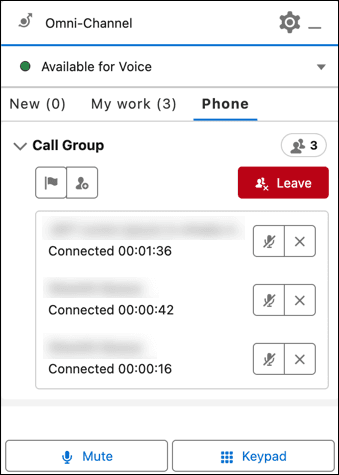
- To manage an ongoing multiparty call, use the phone controls in the Omni-Channel widget:
- Raise a flag to get help from a supervisor
- Add a call participant
- Leave the call
- Mute a participant
- Remove a participant from the call
- Mute your microphone
- Hold is not supported for multiparty calls.
Make a consult call during an active multiparty call
You can start a consult call during an active multiparty call to discuss the ongoing situation in a separate conversation. You can then choose to end the consult call or merge the consult call with the multiparty call.
- During a multiparty call, click New Call to start a separate consult call. During the consult call, multiparty call participants in a call group can continue the discussion.

- To merge the consult call with the multiparty call, click Merge.

Vendor call key format for multiparty calls
The vendor call key displayed in the Salesforce voice call record uses the following format:
<first GUID>:<second GUID>:call
For example, 00000001-75e4-4ad5-80db-a1bae3bf18cd:942e473f-5625-49bd-9616-af70be8beb94:call. The first GUID is not randomly generated. Instead, for voice call records that belong to the same conversation, its first eight digits increment sequentially while the remainder of the GUID stays the same. The second GUID represents the conversation and the suffix can take the values call, warm, or consult.

Limitations of multiparty call
Genesys Cloud limitations
- Salesforce enforces a maximum limit of six participants per call. The Service Cloud Voice user interface prevents users from adding participants beyond this limit; however, Genesys Cloud does not enforce this restriction. If more than six participants are active in the multiparty call, the integration will display a newly joined participant only after an existing participant disconnects.
- During a consult call, participants cannot add additional participants into the consult.
- Multiparty calls to the Genesys Cloud group are not supported.
- Agents cannot place additional callback calls after starting a multi-party call from a callback.
- Agents cannot mute external contacts.
- Agents cannot unmute other agents in an ACD conference.
- Agents cannot transfer a call while participating in a multiparty call with more than two participants. To transfer the interaction, the agent must first add the intended participant and then leave the call. After the original agent exits, the remaining participants can continue the call.
Salesforce limitations
Consider the following Salesforce limitations. For a complete list of limitations, see Multiparty Calls and Consult Calls Limitations and Considerations in the Salesforce documentation.
- Salesforce Voice Toolkit API isn’t supported for multiparty calls.
- Omni-Channel Unified Routing isn’t compatible with multiparty calls.
- Compact layout call controls on the Voice Call record page reflect the initial call before a multiparty call was started. The compact layout call controls don’t reflect a multiparty call or consult call. Genesys recommends removing the Compact layout call controls from the VoiceCall record.
- When Salesforce Voice is in Voice Resiliency mode, consult calls are supported, but there’s no association established between the consult call and multiparty call entities. Also, there’s no notification in the conversation component when a consult call starts.
- Multiparty calls and consult calls are supported only if Salesforce Voice is part of an app with console navigation.
- A call participant’s name can appear incorrectly after starting a consult call or when merging a consult call and multiparty call.
- When two agents share the voice call record for a
callTypeofInternalCall, the first agent (Agent 1) is a standard user with restricted access to the VoiceCall object, while the second agent (Agent 2) becomes the owner of the VoiceCall record. As a result, Agent 1 can lose access to the VoiceCall record. To ensure that Agent 1 retains access, create a sharing rule based on group membership. Add all agents who use the phone book feature to a Salesforce group and grant that group Read Only access to the VoiceCall records.
[NEXT] Was this article helpful?
Get user feedback about articles.