Work with a program
Programs in Genesys Cloud CX define how interaction analysis, insights, and evaluations are applied across the contact center. A program combines topics, queues, flows, analytics settings, and evaluation rules into a single configuration. This structure enables organizations to analyze and evaluate customer interactions consistently at scale.
A program is a configuration framework that defines how Genesys Cloud speech and text analytics and quality management capabilities analyze, summarize, and evaluate interactions. Programs are assigned to specific queues or flows and apply a consistent set of rules to all interactions processed through those assignments.
Programs can control whether customer sentiment analysis and agent empathy analysis are performed for interactions associated with the program.
Program capabilities
Within a program, you can configure the following capabilities:
- Topic detection – Uses speech and text analytics to identify business-level intents in interaction transcripts based on configured topics and phrases.
- Sentiment analysis – Analyzes customer sentiment throughout an interaction to help identify emotional trends and potential experience risks.
- Program-level sentiment and empathy controls – Allow administrators to enable or disable customer sentiment analysis and agent empathy analysis for individual programs.
- AI summary, insights, and outline – Generates AI-powered summaries and key insights for interactions, providing faster visibility into outcomes, issues, and customer intent.
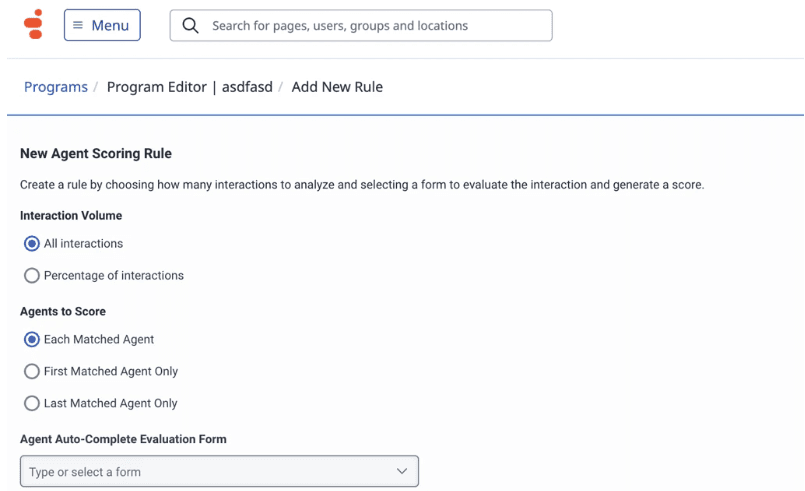
- Automated agent scoring – Generates auto-complete evaluations to score interactions at scale and support quality management and agent coaching.
Topics and languages
Programs can include topics in multiple dialects or languages. This capability is useful when different parts of the contact center focus on different business intents. You must define topics before you add them to a program. You can edit topic content after it is added; however, the program uses the topic version that is applied at publish time.
- Programs include one preconfigured program that contains a set of predefined topics. This program is set as the default program automatically, but you can change it at any time.
- Genesys Cloud EX does not support flows. In this environment, you can assign programs only to queues. Although all flow types appear in the program editor, selecting them has no effect.
- Topic limits:
- Standard limit: 500 topics per dialect
- Maximum number of dialects that you can select in the program editor: 15
- You cannot publish a program that contains more than 500 unpublished topics
- Performance indicators for large programs: When you edit or delete a program that contains more than 500 topics, a spinner and status message indicate that the operation is in progress.
- When a program contains more than 500 topics, the following features are unavailable:
- Filter by Tag (applies to both the topics grid page and the program editor)
- Show selected only option in the program editor
- Select all option in the program editor
- Agent scoring limits: A program can include up to five (5) enabled agent scoring rules.
[NEXT] Was this article helpful?
Get user feedback about articles.