Set up tools for an agentic virtual agent
Series: Create an agentic virtual agent
Previous suggested step: Define an agent’s role and guidelines
Next suggested step: Connect an agentic virtual agent to a knowledge fabric configuration
Tools are data actions that provide your agentic virtual agents access to real-time data, enabling them to complete end-to-end actions.
Enter basic details and choose a data action
- Click Menu > Orchestration > AI Studio > Agentic Virtual Agents.
- (Optional) To search for a specific agent, start typing the name of the agent in the search box. As you type, the matching agents are shown.
- To open an AI agent, click the agent’s tile. The Agent profile view opens.
- Click the Tools tab.
- Click Create. The Create Tool view opens.
- Under Overview, add a meaningful name. For example, “validate user login code.” Genesys recommends that you add a
getprefix when the agent gets something from the tool, for example, “get available hotels given distance.” - Add a description that clearly states the tool’s objective. For example, “Sends the user’s login credentials to an API endpoint. If the login credentials are valid, return a session token (aka auth token). Otherwise, return an error message.”
- In the Source section, select a data action from the Choose a data action list. For more information about creating a custom data action, see Create a custom action for integrations.
- Click Next to proceed to the Input tab.
Set up inputs
Add pre-instructions
- Under Pre-instructions in the Input tab, click Add to add any conditions that must be met before this tool is used by the agent. For example, “Obtain only the user’s login code to log in. Once they are authenticated, do not ask for authentication again.”
- Add as many pre-instructions as needed for the intended tool usage.
Set up variables
The input variables are pulled from the data action. To ensure that they are set up for the tool, follow these steps:
- To set up the input variables for the tool, follow these steps:
- Under Inputs in the Input tab, select one of the following options:
- Create new: Allows you to create a new input variable to use with the tool.
- Link existing: Allows you to link to an existing variable from another tool or start context from outside the agent.
- If you selected Create new in the previous step, enter these details:
- In the Name field, enter a variable name.
- In the Description field, provide a clear description about the variable. For example, “8-digit login code that is used to authorize a user into the system.”
- From the Additional details list, select List and then add a comma-separated list of values if you want the agent to accept only those values.
- If you selected Link existing, do these steps:
- Click Select to view all available variables on the right pane.
- Select the required variable or create the relevant start context and click Select.
- Under Inputs in the Input tab, select one of the following options:
- Click Next to proceed to the Output tab.
Set up the output object
- Under Outcome Instructions in the Output tab, click Add to define how the agent must present the outputs to the participants or what action the agent must take.
- Add as many outcome instructions as needed for the intended tool usage.
- To set up the output object for the tool, follow these steps:
- Under Outputs, enter the following details:
- In the Name field, enter an output object name. For example, “PaymentRecord.”
- In the Description field, provide a clear description about the output object. For example, “Record of a processed payment transaction.”
- Select the output parameters to include in the output object.
- Under Outputs, enter the following details:
- Click Next to proceed to the Summary tab.
Review and save the tool
- In the Summary tab, review all the parameters of the tool.
- To edit the parameters, click Edit.
- Click Create.
Navigating the agentic virtual agent profile
The profile contains the following sections and a preview widget:
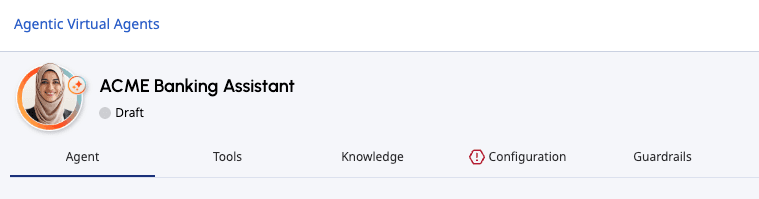
You can switch to any of the sections of the agentic virtual agent while creating a new agent, editing an existing agent, or viewing an agent. Any incomplete section is indicated by the icon preceding the section name. You can save an agent with an incomplete section but you cannot publish the agent until all sections are complete.
After you have completed all necessary sections of the agent setup, you can click Publish to publish the flow.

[NEXT] Was this article helpful?
Get user feedback about articles.