Navigate the Main Forecast page
- Genesys Cloud CX 3, Genesys Cloud CX 4, Genesys Cloud CX 3 Digital, Genesys Cloud CX 1 WEM Add-on II, Genesys Cloud CX 2 WEM Add-on I, or Genesys Cloud EX license
- The following permissions:
- All permissions under Workforce Management > mainForecast
- Workforce Management > mainForecast – View
- Workforce Management > Planning group – View
- Analytics > conversationsAggregate – View
- Routing > Queue – View
The Main Forecast view displays actual and forecasted aggregate interaction data. Forecasts include up to 104 weeks (two years) of data, while actuals include up to 261 weeks (five years) of data. The data includes and . Data is organized by planning groups and can be filtered by metric, dates, and planning groups. You can view the data in table and graph views.
The Main Forecast page also helps you understand how Genesys Cloud generates forecasts by detecting and normalizing outliers. Outliers are actuals that differ significantly from expected values. During forecast generation, Genesys Cloud automatically normalizes these values and uses the normalized values instead of the outlier values to improve forecast accuracy. The Detected Outliers tab displays actual values that Genesys Cloud identified as outliers during forecast generation.
The Main Forecast view has the following sections:

The Main Forecast view displays one metric at a time. Use the metric selector list available on the upper left corner of the Main Forecast page to switch between Offered and Average Handle Time metric. The Offered metric is displayed by default.
Time zone selectorSelect a time zone from the list on the upper right corner. This field displays the forecast in the time zone of the Business Unit by default.
Business Unit selectorAccess the data for a specific business unit by selecting it from the Business Unit selector on the upper right corner.
Main Forecast viewsThe Main Forecast views include:
 – View the historical portion of the data including all the actual interaction data in Genesys Cloud and any data that is imported via Historical Data Import. By default, Genesys Cloud stores up to five years of history. You can use the Historical view to compare historical actuals to past Continuous Forecast snapshots to measure forecast accuracy.
 – View data trends. The graph is a combination of Historical and Forecast Views and allows access to all available data for the Business Unit.
 – View the forecast graph of the current and future portions of the data. You can further use the Forecast View to compare forecast and actual overlays data.
 – View the Main Forecast in graph format. You can use the graph for high-level exploration that reveals trends, seasonality, and anomalies at a glance.
 – View the Main Forecast in a column-based table that displays exact values and enables side-by-side comparison of intervals, snapshots, and overlays. Use the table view when you need precise, accessible, column-level analysis.
Navigates to the latest data point (most recently generated forecast) in the graph view or the corresponding row in the table view. This option is available only in the Trend view.
Date Range SelectorFilter data to a specific date range. In addition, upon mouse hover over, view the business unit time zone and display time zone details.
Zoom level SelectorControl the range of the data that you want to view on the graph. You can use the different pre-configured zoom levels to quickly navigate the graph.
The zoom level impacts the granularity displayed in the forecast chart and when the zoom level does not match the pre-defined options, it is blank. You can also zoom in and out of the chart using the Ctrl and mouse scroll wheel (Windows) and command + (Mac).
Granularity SelectorControl the granularity of the data you want to view. The following table illustrates the supported granularities per zoom level:
| Granularity | Supported Zoom Level |
| 15 minutes | <= 2 weeks |
| 30 minutes | <= 2 weeks |
| 60 minutes | <= 2 weeks |
| Day | => one week <= 2 months |
| Week | => one Month |
The Main Forecast page supports:
- 15 mins, 30 mins, or 60-mins granularity for the first 59 weeks of the continuous forecast and most recent 31 weeks of actuals.
- Daily granularity for the first 59 weeks of the continuous forecast and up to 261 weeks of actuals.
- Weekly granularity for the entire range of available data.
[/hidden]
| Option | Description | ||||||||||||
|---|---|---|---|---|---|---|---|---|---|---|---|---|---|
| Main forecast metric selector | The Main Forecast view displays one metric at a time. Use the metric selector list available on the upper left corner of the Main Forecast page to switch between Offered and Average Handle Time metric. The Offered metric is displayed by default. | ||||||||||||
| Time zone selector | Select a time zone from the list on the upper right corner. This field displays the forecast in the time zone of the Business Unit by default. | ||||||||||||
| Business Unit selector | Access the data for a specific business unit by selecting it from the Business Unit selector on the upper right corner. | ||||||||||||
| Forecast status | Displays the current status of the Main Forecast. When changes that affect the forecast occur, such as a historical data import or planning group configuration change, Genesys Cloud rebuilds the forecasting model. The forecast status changes as the model rebuild progresses:
| ||||||||||||
| Refresh | When a new forecast becomes available, Genesys Cloud displays a notification. Click Refresh to load the latest forecasting results. After you refresh the forecast, the status returns to Up to date. | ||||||||||||
| Main Forecast views | The Main Forecast views include:
| ||||||||||||
| Latest | Navigates to the latest data point (most recently generated forecast) in the graph view or the corresponding row in the table view. This option is available only in the Trend view. | ||||||||||||
| Date Range Selector | Filter data to a specific date range. In addition, upon mouse hover over, view the business unit time zone and display time zone details. | ||||||||||||
| Zoom level Selector | Control the range of the data that you want to view on the graph. You can use the different pre-configured zoom levels to quickly navigate the graph. The zoom level impacts the granularity displayed in the forecast chart and when the zoom level does not match the pre-defined options, it is blank. You can also zoom in and out of the chart using the Ctrl and mouse scroll wheel (Windows) and command + (Mac). | ||||||||||||
| Granularity Selector | Control the granularity of the data you want to view. The following table illustrates the supported granularities per zoom level:
The Main Forecast page supports:
|
Click the image to enlarge.

This section allows selection of additional analysis datasets to compare historical and forecast information. Depending on the selected analysis option, you can compare historical forecasts, overlay historical actuals, or review detected outliers that influenced forecast generation.
| Category | Description |
|---|---|
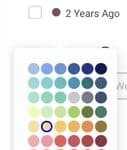
| Forecast Snapshots | View the forecasts generated in the past. These forecasts are automatically generated and updated every night, providing refreshed predicted values. You can view a snapshot of the continuous forecast generated in the past on a specific day, allowing you to compare its past versions of the forecast with the current version. Continuous forecast snapshots do not include modifications as they are system-predicted values. For example, if you select a snapshot from one week ago, the chart displays the continuous forecast generated one week ago. You cannot use snapshots for scheduling or capacity planning but you can use it to compare with historical actuals for accuracy and also compare with newer forecasts to see how the forecast has changed over time. To configure the color of the snapshot line on the chart, click the colored circle next to the snapshot name and choose a color from the palette. Click the image to enlarge. |
| Actual Overlays | Pin segments of the historical data to a specific week in the forecast. For example, you can show last week’s actuals starting this week to make a comparison. |
The Detected Outliers tab displays historical values that Genesys Cloud identified as statistical outliers during forecast generation.
Genesys Cloud automatically detects and normalizes outlier values when generating the continuous forecast. Although the historical actual value remains unchanged, the forecasting engine uses the normalized value instead of the outlier value when calculating future forecasts.
For each detected outlier, the tab displays information that helps explain the forecast calculations, including:
- the planning group
- the week in which the outlier occurred
- the actual historical value
- the expected (normalized) value used for forecasting
- the percentage difference between the actual and expected values
For example, if the historical value for a planning group is 227 interactions but that value is identified as an outlier, Genesys Cloud may use a normalized value of 693 interactions when generating the forecast. The Detected Outliers tab allows you to understand why the forecast is based on the normalized value instead of the historical value.
- Outliers are detected only at weekly granularity.
- Outlier detection is performed separately for each planning group. Changing the selected planning groups updates the detected outliers that appear in the tab.
- If the selected date range does not contain any detected outliers, the tab displays No outliers detected.
When the selected date range contains detected outliers, the graph displays visual indicators based on the selected granularity.
| Granularity | Display |
|---|---|
| Weekly | Displays a marker for the week that contains the detected outlier. |
| Daily, hourly, or interval granularity | Highlights the entire affected week with a shaded band instead of displaying a marker. |
This behaviour reflects that outliers are detected only at the weekly level.
Click the image to enlarge.

The right side of the Main Forecast view displays several widgets that provide additional information and options.
| Widget | Description |
|---|---|
| Totals widget | View forecast totals for the selected metric based on the selected date range. |
| Data Comparison widget | View graph values by hovering the mouse over the graph. View details such as continuous forecast, actuals, and any additional selected datasets. The widget displays data corresponding to the default data point. The default data point is Latest or middle of the graph, if Latest is not visible based on the selected date range. If both forecast and actuals are available for the specified data point, the comparison widget includes comparative analysis data, such as difference and accuracy. You can lock the data point on the graph or row in the table by double-clicking a data point. Once done, the Data Comparison widget remains fixed on the locked item and does not update as you move across other data points providing a stable reference point while exploring the dataset. |
| Planning Group widget | Select planning groups to filter the data. Use the Quick Filter to find planning groups based on their name. Use the Advanced Search option to find planning groups based on Media Type, Queue, Language, and Skills.
Notes:
|
| Display Options widget | Reset the Main Forecast view to defaults using the following options:
|
[NEXT] Was this article helpful?
Get user feedback about articles.