Assign queues to users
AI-generated summary
Genesys Cloud's queue management system provides administrators with comprehensive tools to assign and manage queues through the User Management interface, supporting both individual and bulk operations. Administrators with appropriate Routing > Queue permissions (Add, Edit, Delete, Join, and View) can create, configure, and delete queues with confirmation prompts to ensure intentional changes.
The system implements differentiated assignment workflows based on batch size to optimize usability across varying organizational scales. For single-user assignments or groups of 2–10 users, a three-step wizard (Review, Assign, Update) displays each user individually with their current queue count and expandable rows for detailed information. For bulk operations involving 11–100 users, the workflow bypasses the Review step and proceeds directly to the queue assignment screen, streamlining the process for larger-scale operations.
Both workflows support two primary assignment methods: individually searching and selecting specific queues through the Assign Queues search field, or copying queue assignments from an existing user by selecting them in the Source User field and clicking Apply. An optional Remove existing queues checkbox allows administrators to clear prior queue assignments before completion. A critical consideration is that Genesys Cloud automatically removes any previously assigned queues not included in the new queue list being copied, which administrators should account for when performing bulk assignments.
Queue assignments integrate with broader contact center operations including agent activation status, presence management, and manual interaction assignment capabilities. Additional queue management options are available through the Queues page for adding agents and activating or deactivating queues for existing members. Key features include search functionality for locating queues and users and a locked mode for preserving selections during copy operations, enabling efficient administration across varying organizational scales.
- Routing > Queue – Add, Edit, Delete, Join, and View permission
You can assign queues to a single user while editing their profile, or to multiple agents at once in a single bulk action.
Note: For information about adding agents to a queue from the Queues page, see Create queues. For more information on how to activate and deactivate queues for agents who are already members of queues, see Activate and deactivate agents in queues.
- Click Menu > User Management > Users.
- Find a user using search or by paging through the list.
- For the selected user, click More and select Edit Person.
- In the Queues section, click View Queues.
Assigned queues appear first in the list. - In the Search for a queue box, enter the first few letters of the queue name.
All the relevant queues are listed.
- Under Assigned column, select the queue that you want to assign.
- Repeat steps 5 and 6 for each additional queue to add.
- Click Save Changes.
- Click Menu > User Management > Users.
- Find and select a user using search or by paging through the list.
- Click More Actions , and select Assign Queue.
The Reassign Queue dialog opens. The selected user’s name appears in the Selected user field.
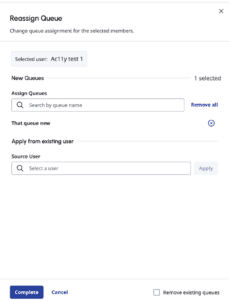
- Assign queues in either of the following ways, or use both together:
- Add queues individually – Use the Assign Queues search field to find and select specific queues.
- Apply from existing user – In the Source User field, search for and select a user whose queue assignments you want to copy. Click Apply to add that user’s queues to the New Queues list.
- (Optional) To remove the existing queues from the selected user, select the Remove existing queues option.
- Review the selected queues and the existing queues, if any.
- Click Complete.
Warning: If the selected agents have previously assigned queues not included in the list of queues you are copying, Genesys Cloud removes them.
- Click Menu > User Management > Users.
- Select the users to whom you want to bulk-assign queues.
- Click More Actions , and select Assign Queue. The Reassign Queue dialog adapts based on the number of users you have selected:
- If you have selected 2–10 users, then the dialog opens as a three-step wizard: Review > Assign > Update.
- On the Review step, each selected user is listed individually by name with a badge showing their current queue count; expand a row to see details.
- Click Next Step to go to Assign.
- Assign queues in either of the following ways or use both together:
- Add queues individually – Use the Assign Queues search field to find and select specific queues.
- Apply from existing user – In the Source User field, search for and select a user whose queue assignments you want to copy. Click Apply to add that user’s queues to the New Queues list.
- Click Next Step to review the selected queues.
- (Optional) To remove the existing queues from the selected users, select the Remove existing queues option.
- Click Complete.
- If you have selected 11–100 users, the Reassign Queue dialog directly opens the queue assignment screen.
- Assign queues in either of the following ways or use both together:
- Add queues individually – Use the Assign Queues search field to find and select specific queues.
- Apply from existing user – In the Source User field, search for and select a user whose queue assignments you want to copy. Click Apply to add that user’s queues to the New Queues list.
- (Optional) To remove the existing queues from the selected users, select the Remove existing queues option.
- Click Complete.
- Assign queues in either of the following ways or use both together:
- If you have selected 2–10 users, then the dialog opens as a three-step wizard: Review > Assign > Update.
[NEXT] Was this article helpful?
Get user feedback about articles.