Browser window for WebRTC phones
A separate WebRTC window opens to establish and maintain WebRTC phone connectivity for the following users:
- Genesys Cloud for Salesforce users who use Sales Cloud (or Service Cloud with the Pop WebRTC Phone window setting selected).
- Genesys Cloud for Zendesk users who select the Pop WebRTC Phone window setting.
- Genesys Cloud Embeddable Framework users who configure the WebRTC Phone window to pop out by default, or who select the Pop WebRTC Phone window setting. For more information, see settings in the Genesys Cloud Developer Center.
- Genesys Cloud for Microsoft Teams users who use the web client to access Teams.
If you use a browser in full-screen mode on a computer running macOS, the WebRTC Phone window opens as a tab in your browser. When you log out or change to a physical phone or softphone, this window (or tab) disappears.
- Do not close the window or tab.
If you click inside the WebRTC Phone window or tab and then attempt to close the window or tab, a browser warning appears. If you continue and close the window, then your WebRTC phone disconnects. The client immediately attempts to open the WebRTC Phone window or tab to re-establish connectivity.
- Do not minimize the window.
If you minimize the WebRTC Phone window, then the client stops working properly. For example, you may experience a delay when you answer a call or are unable to answer a call. Restore the minimized window for the client to function properly.
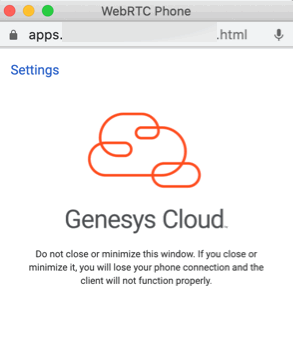
For Chrome browser users, this window also contains a Settings link. This link allows users to configure the WebRTC phone settings inside this window rather than in the client. For more information, see Change your WebRTC phone settings.
The following image shows the WebRTC Phone window for Chrome browser users.
For more information about WebRTC phones, see About phones in the Genesys Cloud embedded clients.
For more information about the integrations, see About Genesys Cloud Embeddable Framework, About Genesys Cloud for Salesforce, About Genesys Cloud for Microsoft Teams, and About Genesys Cloud for Zendesk.
[NEXT] Was this article helpful?
Get user feedback about articles.