Add multiple callers to a call
Note: This article applies to CX Cloud from Genesys and Salesforce integration.
To add callers to an ongoing voice call:
- In the Omni-Channel widget, click the Add User button.
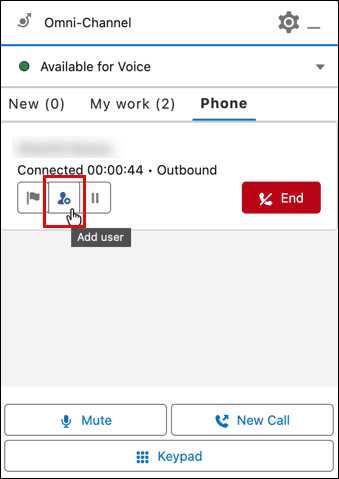
- To initiate the call, perform one of the following steps.
- Select a call participant from the Phone contacts list, and click Call.
- Or to use the keypad to dial an external contact, click Keypad and enter the number.
- To add more participants to an ongoing voice call, click the Add User button in the call group.
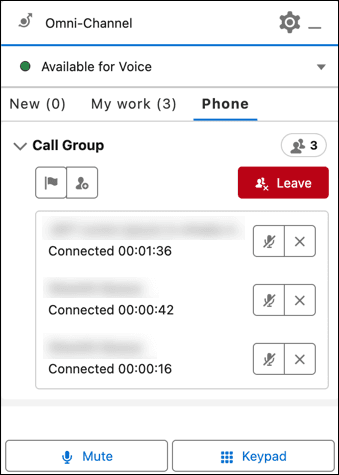
- To manage an ongoing multiparty call, use the phone controls in the Omni-Channel widget:
- Raise a flag to get help from a supervisor
- Add a call participant
- Leave the call
- Mute a participant
- Remove a participant from the call
- Mute yourself
Notes:
- Hold is not supported for multiparty calls.
- Consult transfer is not supported for multiparty calls.
Limitations of multiparty call
Genesys Cloud limitations
- For optimal performance, multiparty call must be initiated within the Service Cloud Voice and remain within the environment.
- Only the first agent who creates the multiparty call has permission to use the Add User function to add additional participants directly to the multiparty call.
- Salesforce enforces a maximum limit of six participants per call. The Service Cloud Voice user interface prevents users from adding participants beyond this limit; however, Genesys Cloud does not enforce this restriction. If more than six participants are active in the multiparty call, the integration will display a newly joined participant only after an existing participant disconnects.
Salesforce limitations
For more information, see Multiparty Calls and Consult Calls Limitations and Considerations in the Salesforce documentation.
[NEXT] Was this article helpful?
Get user feedback about articles.