Customize the voicemail not available behavior
Use the built-in default voicemail flow in Architect when you need customized “voicemail not available” behavior that callers experience. You can configure this customized message, for example, if you want to make sure you do not reveal the names of customer service agents. If the voicemail flow runs on behalf of a queue, you can modify the flow’s logic to make the call reenter the queue, so that callers do not need to redial and therefore receive quicker service.
Note: When you customize the default flow, you customize voicemail behavior for all users, queues, and groups. For more information, see Voicemail flow overview.
To customize the default voicemail not available message, follow these steps:
- From the Architect home page, click or hover over the Flows menu and select Voicemail.
- Open the Default Voicemail Flow. The flow’s configuration page opens. If the flow is in read-only mode, click Edit.
- In the starting task’s design area, go to the No path of the Decision action that verifies whether voicemail is enabled for the target entity.Note: To verify whether voicemail is enabled, the flow uses the “Voicemail.Enabled” built-in Boolean Architect variable. For more information, see Architect built-in variables.
- Click the Play voicemail not enabled Play Audio action below the No path.
- In the Audio field, click the preconfigured audio sequence. The Audio Sequence – Audio dialog box opens.
- Customize the audio sequence according to your needs.
- Save and publish the flow.
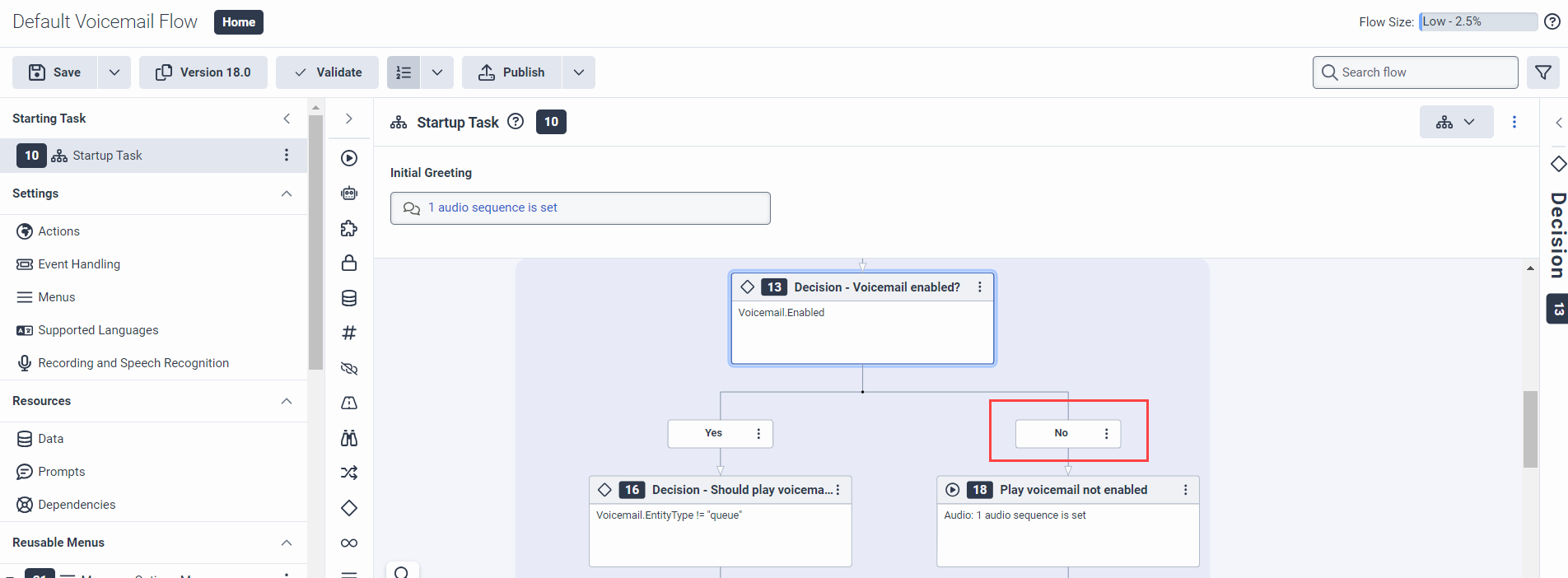
To make the call reenter the queue when voicemail is unavailable, follow these steps:
- If you do not have the Default Voicemail Flow open, from the Architect home page, click or hover over the Flows menu, select Voicemail, and open the Default Voicemail Flow. The flow’s configuration page opens.
- If the flow is in read-only mode, click Edit.
- Click the No Voicemail Handling task in the Reusable Tasks area.
- From the toolbox, expand the Logical category and drag a Decision action below the Failure path of the Process Voicemail Input action, which has the label Get Fax.
- Click the expression button to set the Expression value.
- Add the Boolean expression
Voicemail.EntityType == "queue"to determine whether the voicemail flow runs on behalf of a queue. - From the toolbox, expand the Transfer category and drag a Transfer to ACD action below the Yes path of the Decision action that you previously added.
- Click the expression button to set the Queue.
- Add the built-in Architect variable
Voicemail.Queueto tell Architect which queue the flow is running for. - (Optional) Configure a prompt to play before transferring the interaction.
- (Optional) Configure a prompt to play if the transfer action detects a failure.
- From the toolbox, drag a Disconnect action below theTransfer to ACD action‘s Failure path.
- Save and publish the flow.

[NEXT] Was this article helpful?
Get user feedback about articles.